
Why Does My Robot Vacuum Keep Getting Lost? Causes and Fixes

Quick Answer
A robot vacuum usually keeps getting lost because its sensors cannot read the room correctly, its saved map no longer matches the layout, the dock has moved, or its wheels are slipping. Start by clearing obstacles, checking the wheels, and learning how to clean robot vacuum sensors safely before deleting maps or performing a reset.
Common Reasons Your Robot Gets Lost
- Dirty sensors: Dust or fingerprints can interfere with navigation and obstacle detection.
- Outdated map: Furniture changes or a bad mapping run can make the saved layout inaccurate.
- Moved dock: Changing the charging station’s position can confuse some mapped robots.
- Wheel problems: Hair, thread, or poor traction can make the robot misjudge its movement.
- Lighting changes: Camera-based navigation may behave differently in dim or visually difficult rooms.
- Software issues: A corrupted map, app problem, or firmware issue can cause unusual routes.
Best First Test
- Start one full cleaning cycle from the dock and watch where the navigation first becomes abnormal.
If your robot vacuum suddenly starts circling, repeating rooms, missing areas, or wandering past its dock, it can look as if the machine has forgotten your house. In most cases, though, the problem comes from navigation, mapping, sensors, wheels, or the cleaning environment.
I like to troubleshoot these problems from the simplest physical causes upward. That avoids deleting a perfectly good map when one dusty sensor or tangled wheel is the real problem.
In This Guide
What Does “Getting Lost” Mean for a Robot Vacuum?
A robot vacuum is “getting lost” when its navigation system repeatedly loses track of its location, follows an abnormal route, misses mapped areas, or struggles to return to its dock. The exact behavior depends on the navigation technology inside your model.
Not every strange-looking route means something is wrong. Older or simpler robots may intentionally use less systematic movement than modern mapping models.
Signs that point to a real navigation problem
- Repeated circling: The vacuum turns around in the same small area without progressing.
- Duplicate cleaning: It repeatedly cleans one room while ignoring another mapped area.
- Map mismatch: The app shows walls, rooms, or the dock in the wrong location.
- Random stopping: The robot pauses on an open floor without an obvious obstacle.
- Docking failure: It reaches the dock area but wanders away or cannot line itself up.
- Sudden change: A machine that previously navigated correctly begins behaving unpredictably.
A navigation problem is different from a robot simply getting stuck. A stuck robot may know where it is but cannot physically move because of a cable, rug, threshold, or furniture gap.
Consumer Reports includes coverage, obstacle avoidance, furniture clearance, and entrapment avoidance when evaluating robot-vacuum navigation. You can see its broader robot vacuum testing and recommendations for context.
Why Does My Robot Vacuum Keep Getting Lost?

Your robot can lose its position when the information coming from its sensors no longer matches what its software expects. Physical changes, dirty navigation hardware, wheel movement, and saved-map problems are common places to investigate.
1. The navigation sensors are dirty
A robot may use cliff sensors, wall sensors, LiDAR, cameras, infrared receivers, bumpers, or several systems together. Dust or film on exposed sensor surfaces can interfere with the information those systems receive.
Clean only the areas your manufacturer identifies as user-serviceable. Avoid spraying liquid directly into a sensor opening.
2. The saved map no longer matches your rooms
Smart mapping works best when the stored layout resembles the actual cleaning area. Moving large furniture, relocating the dock, closing previously open doors, or interrupting a mapping run can create a mismatch.
- Check whether walls appear crooked or misplaced in the app.
- Look for duplicated rooms or unexplained blank spaces.
- Confirm that the dock appears in its real location.
- Make sure every room you want cleaned is accessible.
If the map itself looks wrong, follow a deliberate process to map rooms with a robot vacuum instead of repeatedly editing a badly distorted layout.
3. Someone moved the robot during a cleaning job
Picking up a mapping robot and placing it somewhere else can confuse location tracking on some models. The robot may need time to recognize its surroundings again, while other models may require a fresh start from the dock.
When possible, pause the job rather than carrying the vacuum across the room. Follow your manufacturer’s instructions if the robot becomes trapped.
4. Hair or debris is affecting wheel movement
Navigation software often estimates movement using information from several sensors. A wheel that drags, slips, or turns unevenly can therefore produce behavior that looks like a mapping problem.
- Inspect the front caster wheel.
- Check both drive wheels for wrapped hair.
- Remove thread from accessible wheel axles.
- Check the main and side brushes for resistance.
A regular robot vacuum maintenance routine makes these hidden mechanical problems easier to catch.
5. Clutter keeps changing the route
Cables, shoes, lightweight mats, toys, pet bowls, and temporary furniture can force a robot to make repeated detours. A heavily changed route can be especially confusing during an initial mapping run.
For permanent trouble spots, robot vacuum no-go zones can keep compatible models away from areas that repeatedly cause problems.
Section Takeaway: Navigation depends on both the robot and the room around it. Check sensors, wheels, the saved map, dock position, and recent layout changes before assuming the electronics have failed.
How Do I Fix a Robot Vacuum That Keeps Getting Lost?
Start with reversible fixes and move toward software resets only when simpler checks fail. This order protects your saved maps, schedules, and settings from unnecessary deletion.
Step 1: Watch where the problem begins
Start a normal full-home cleaning job from the charging dock. Watch the first part of the run instead of immediately changing settings.
- If confusion starts beside one rug, inspect that surface.
- If it starts in one dark room, consider the navigation technology.
- If it begins after crossing a threshold, inspect wheel traction.
- If it happens everywhere, inspect sensors and the saved map.
Step 2: Clear temporary obstacles
Pick up loose cables, socks, toys, lightweight mats, and anything that can move when touched. Open the doors to rooms that should be part of the cleaning route.
This is especially important during a fresh mapping run. iRobot also advises clearing hazards such as cables before creating a new Smart Map on supported models through its official Smart Map instructions.
Step 3: Check sensors, wheels, and bumper movement
Turn the robot off if your manual instructs you to do so before maintenance. Use the approved cleaning method for the navigation sensors on your exact model.
- Wipe accessible optical sensor windows gently.
- Remove hair from wheels and brush ends.
- Check that the bumper moves normally.
- Inspect charging contacts for visible debris.
Expert Alert: If a wheel remains jammed, a LiDAR assembly does not rotate normally, or the robot makes grinding noises from inside its body, stop disassembling it and contact the manufacturer or a qualified appliance technician.
Step 4: Restart from the dock
Place the dock in its normal permanent position and start the next job from there. Avoid moving either the robot or dock during the test.
iRobot explains that different Roomba navigation systems return home in different ways, including infrared dock detection, visual localization, and LiDAR-based navigation. Its navigation support guide is useful when identifying how a particular model finds its way around.
Step 5: Check firmware before erasing everything
If the physical checks look normal, open the official app and check for software updates. Follow the model-specific instructions to update robot vacuum firmware.
Don’t interrupt an update once it starts. Keep the robot powered and docked when the manufacturer requires it.
Step 6: Remap or reset only when needed
A clearly corrupted or badly distorted map may need to be deleted and rebuilt. Factory reset should come later because it can remove maps, schedules, network settings, and other saved preferences.
If troubleshooting reaches that point, use the model-specific process to reset a robot vacuum safely rather than copying another brand’s button combination.
Section Takeaway: Troubleshoot in this order: room, sensors, wheels, dock, software, map, then reset. That sequence solves the simple causes first and reduces the risk of deleting useful settings.
Does Navigation Type Affect Why a Robot Gets Lost?
Yes. LiDAR, camera-based navigation, basic bump-and-turn systems, and hybrid robots collect different information, so their failure patterns can look different.
Knowing your navigation type helps narrow the search instead of treating every wandering robot the same way.
| Navigation Type | How It Navigates | Common Trouble Clues | First Check |
|---|---|---|---|
| Basic sensor / bump navigation | Responds to walls, impacts, edges, and movement patterns | Repetitive paths or more bumping than expected | Bumper, cliff sensors, wheels, and clutter |
| Camera / visual navigation | Uses visual landmarks plus movement data | Confusion after visual or lighting changes | Camera area, lighting, map, and room changes |
| LiDAR navigation | Uses laser-based ranging to map surrounding geometry | Distorted map or abnormal positioning | LiDAR housing, map, dock, and obstacles |
| Hybrid navigation | Combines multiple sensor types | Navigation failure that appears environment-specific | Identify which sensor system is being affected |
LiDAR stands for light detection and ranging. It measures surrounding geometry using laser-based ranging rather than relying only on visible room features.
As of 2026, manufacturers still use several navigation approaches rather than one universal system. Check your model’s manual before deciding what behavior should be considered abnormal.
Why Can’t My Robot Vacuum Find Its Charging Dock?
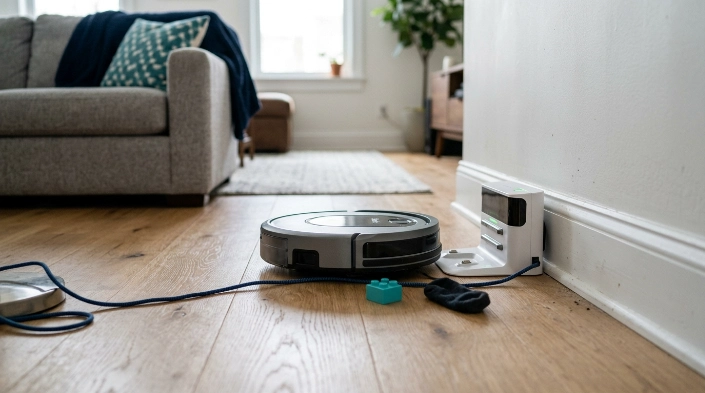
A robot may fail to dock because the station moved, the path is obstructed, its dock-facing sensors are dirty, or the cleaning job did not begin in the expected way. Docking problems can therefore look like broader navigation failures.
Keep the dock location consistent
A mapped robot may store the charging station as part of its understanding of the floor. Moving the station can make that stored information inaccurate.
Roborock’s support guidance for affected models recommends keeping the dock against a wall with about 0.5 meters of clearance on each side and 1.5 meters in front. The exact clearance varies by manufacturer, so use your own model’s instructions first.
Check the dock’s line of approach
- Remove cables or objects directly in front of the station.
- Check for furniture blocking the final approach.
- Clean approved dock and robot signal areas.
- Keep the station powered during the test.
- Start a full run from the station when your model expects that behavior.
Roborock provides model-specific troubleshooting in its official docking support guidance.
If the vacuum finds the general dock area but cannot make charging contact, inspect the contact surfaces separately. That may be a docking or charging-contact problem rather than lost navigation.
Robot Vacuum Navigation FAQ
Why is my robot vacuum suddenly going in circles?
Repeated circling can come from dirty navigation sensors, wheel drag, bumper problems, or incorrect position tracking. Inspect the accessible sensors and wheels first, then check whether the app’s saved map still matches your home.
Should I delete the map when my robot vacuum gets lost?
Not immediately. Clean the sensors, inspect the wheels, clear obstacles, and restart from the dock first. Delete and rebuild the map when it is visibly distorted or navigation remains incorrect after the simpler checks.
Can moving furniture confuse a robot vacuum?
Yes, especially when large changes make the real room look different from a stored map. Many robots can adapt to smaller changes, but a major rearrangement may justify a fresh mapping run if navigation becomes unreliable.
Why does my robot vacuum miss one room?
Check whether the door is open, the room exists correctly on the saved map, and no virtual boundary blocks access. Also inspect the entrance for thresholds, dark surfaces, clutter, or objects that may cause the robot to turn away.
Does a robot vacuum need light to navigate?
It depends on the navigation system. Camera-based models can depend more on visible environmental information, while LiDAR systems measure surrounding geometry differently. Check the manufacturer’s documentation for your exact model before changing lighting solely for navigation.
Can bad Wi-Fi make my robot vacuum get lost?
Wi-Fi problems can affect app controls, map syncing, schedules, and cloud-connected features on some models. However, many robots perform basic navigation using onboard sensors, so poor Wi-Fi does not automatically explain physical wandering.
When should I contact the manufacturer?
Contact support when the robot remains confused on a clear floor after approved sensor cleaning, wheel inspection, remapping, and software checks. Grinding noises, damaged sensors, repeated error codes, or internal mechanical problems also justify professional service.
Final Takeaway
If your robot vacuum keeps getting lost, don’t start with a factory reset. Begin with the room itself, then inspect sensors, wheels, the dock, and the saved map.
The location where the problem begins is often your best clue. Watch one complete run, change one thing at a time, and test again so you can tell which fix worked.
If normal maintenance and a clean mapping run do not restore reliable navigation, use your manufacturer’s support instructions for the exact model. That is safer than opening sealed electronics or guessing at reset procedures.
