
How to Use Robot Vacuum No-Go Zones: A Complete Guide for Smarter Cleaning

Quick Answer
Robot vacuum no-go zones are virtual boundaries that stop your robot from entering specific areas. You can use them to protect rugs, pet bowls, cables, fragile items, or rooms that need privacy. Setting up these zones correctly helps your robot clean more efficiently and prevents common navigation problems.
How to Set Up No-Go Zones
- Open the app: Access your robot vacuum map and boundary controls.
- Create zones: Mark areas where cleaning should be restricted.
- Test placement: Run a cleaning cycle and adjust boundaries if needed.
- Update regularly: Change zones when furniture layouts change.
I’ve tested different cleaning setups in everyday homes, and one feature that makes robot vacuums easier to live with is the ability to control where they go.
No-go zones solve a simple problem: your robot can clean automatically without disturbing areas where it should not travel.
In This Guide
What are robot vacuum no-go zones?
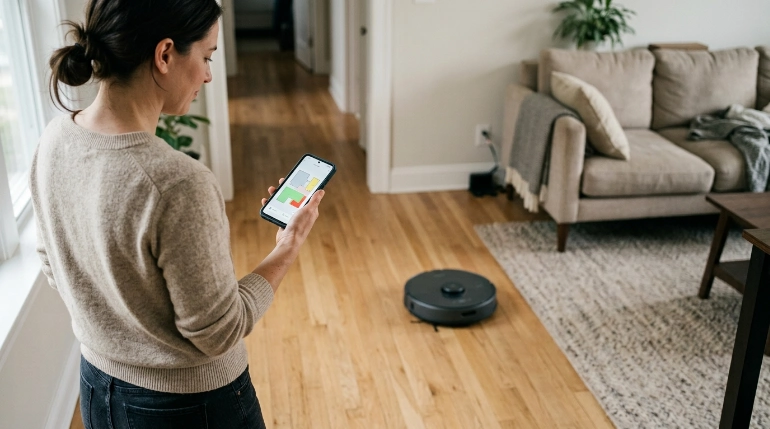
A robot vacuum no-go zone is a virtual area on the cleaning map that tells the vacuum where not to travel.
Most modern robot vacuums create digital maps through sensors and companion apps. Users can then block specific sections without placing physical barriers.
How do no-go zones work?
The robot vacuum stores your home layout and follows software instructions during cleaning. When it reaches a restricted area, it avoids entering that space.
- Virtual boundaries: Digital lines or boxes inside the vacuum app.
- Saved maps: Stored room layouts that guide future cleaning sessions.
- Navigation control: Rules that change where the robot travels.
Why should you use robot vacuum no-go zones?
No-go zones make automated cleaning safer and more predictable by keeping the robot away from problem areas.
In many homes, small obstacles create the biggest cleaning frustrations. A robot may push objects, become stuck, or repeatedly avoid difficult spaces.
- Protect cables: Prevent the vacuum from pulling charging cords or loose wires.
- Protect delicate items: Keep fragile decorations away from moving brushes.
- Protect pet areas: Avoid disturbing food bowls or pet spaces.
- Protect flooring: Block areas where cleaning is not recommended.
Section Takeaway: No-go zones turn a basic robot vacuum into a more controlled cleaning system.
How do you create robot vacuum no-go zones?
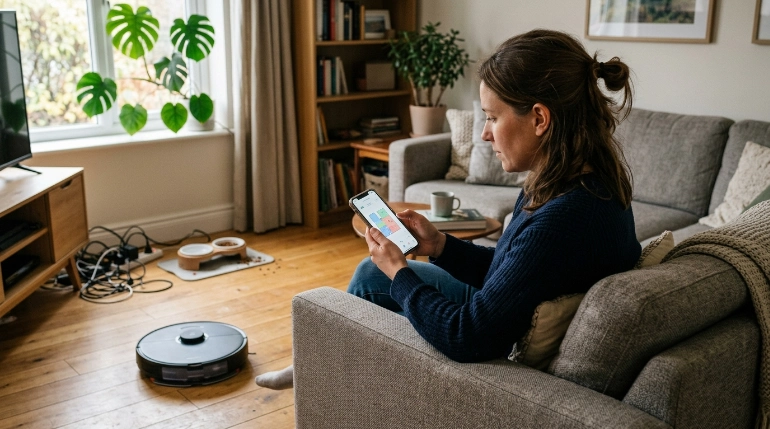
Creating no-go zones usually takes only a few minutes through your robot vacuum app.
- Open the robot vacuum mobile app.
- Select the saved home map.
- Choose the no-go zone or virtual boundary option.
- Draw the restricted area.
- Save the map settings.
- Run a test cleaning cycle.
Where should you create no-go zones?
| Area | Why Block It | Recommended Action |
|---|---|---|
| Pet feeding area | Prevents disturbance around bowls | Create a small restricted zone |
| Cable areas | Reduces tangling risks | Block entertainment centers and desks |
| Fragile decorations | Protects valuable items | Keep robot away completely |
| Wet areas | Prevents unsuitable cleaning | Use a permanent boundary |
What mistakes should you avoid with no-go zones?
The most common mistake is creating too many restricted areas. Excessive boundaries can reduce the robot’s cleaning coverage.
Another mistake is forgetting to update maps after moving furniture.
- Too many zones: Blocks useful cleaning paths.
- Wrong placement: Leaves important areas inaccessible.
- Old maps: Causes navigation confusion after room changes.
No-go zones vs physical barriers: Which is better?
Digital no-go zones are usually more convenient because they do not require physical objects on the floor.
| Feature | No-Go Zones | Physical Barriers |
|---|---|---|
| Setup | Done through app | Requires objects or gates |
| Appearance | Invisible | Visible in rooms |
| Flexibility | Easy to change | Requires moving barriers |
Frequently Asked Questions
Do all robot vacuums have no-go zones?
No. No-go zones are usually available on models with mapping features and app-based controls. Basic robot vacuums may not support virtual boundaries.
Can I change no-go zones later?
Yes. You can usually edit saved maps and adjust restricted areas whenever your home layout changes.
Should I block rugs with robot vacuum no-go zones?
Only if the rug creates a problem, such as slipping, tangling, or compatibility issues with your vacuum model.
How many no-go zones should I create?
Create only the zones you need. Too many restrictions may reduce cleaning efficiency.
Do no-go zones improve robot vacuum performance?
They can improve reliability by preventing the robot from entering areas where it may get stuck or cause problems.
Final Thoughts
Robot vacuum no-go zones are one of the easiest ways to make automated cleaning work better in a real home.
Use them strategically for cables, pets, fragile items, and problem areas. A few well-planned boundaries can save time and reduce daily cleaning frustrations.
