
How to Update Robot Vacuum Firmware Safely and Correctly

Quick Answer
To update robot vacuum firmware, place the robot on its powered charging dock, connect it to stable Wi-Fi, open its official mobile app, and look for Firmware Update, Software Update, or Device Update under Settings. Exact menus vary by brand, so check the manufacturer’s software-update instructions when your app looks different.
Quick firmware update steps
- Charge the robot: Dock it and make sure the charging station has power.
- Check Wi-Fi: Make sure the robot shows as online in its official app.
- Open settings: Select your robot and find the firmware or software update menu.
- Start the update: Follow the prompts or enable automatic firmware updates.
- Leave it alone: Keep the robot powered, docked, and connected until the update finishes.
Before you begin
- Use the official app: Never install unofficial firmware files unless the manufacturer specifically provides them for your exact model.
Updating robot vacuum firmware sounds technical, but most modern models make it surprisingly simple. In most cases, the entire job happens through the same app you use for maps, schedules, and cleaning controls.
I recommend doing a few checks before tapping Update. A stable connection and charged battery prevent many avoidable failures.
In This Guide
What Does Robot Vacuum Firmware Do?
Robot vacuum firmware is built-in software that controls how the machine’s hardware operates. It works behind the scenes with navigation sensors, motors, charging functions, mapping features, and other electronic systems.
Simple definition: Firmware is software stored inside an electronic device that helps its hardware perform its intended functions.
A firmware update replaces or modifies part of that built-in software. Manufacturers may use updates to fix bugs, improve compatibility, refine functions, or support new features.
This is different from updating the phone app. Your app and your robot can have separate software versions.
Why robot vacuum firmware updates matter
A robot may continue cleaning on older firmware. However, an available update can address problems that you cannot solve by cleaning brushes or resetting a map.
- Bug fixes: Updates can correct known software problems.
- Navigation changes: Manufacturers may refine mapping or movement algorithms.
- Feature support: Some functions appear only after compatible firmware is installed.
- App compatibility: New firmware can help the robot work correctly with newer app versions.
- Reliability improvements: Updates may address connection, charging, or other operating issues.
For example, iRobot publishes software release notes so owners can review changes released for supported products.
You do not need to obsess over firmware versions every week. Checking periodically is enough unless the app specifically tells you an update is available.
What Should You Do Before Updating Robot Vacuum Firmware?
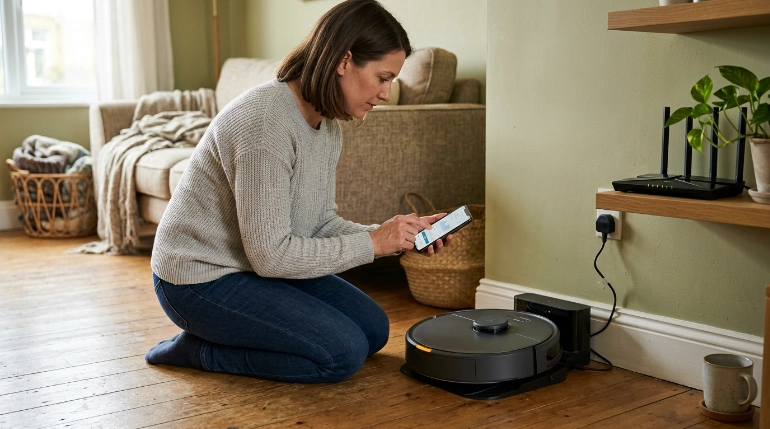
Prepare the robot before starting. A firmware update depends more on stable power and network access than on anything related to brushes, filters, or suction.
The routine I use is simple: dock, charge, confirm Wi-Fi, then open the update screen. That order removes most obvious failure points before the installation begins.
1. Put the robot on its charging dock
Return the vacuum to its normal dock or base station. Make sure the station itself is connected to power.
Do not begin an update with an almost-empty battery. Some manufacturers impose a minimum charge level before installation can start.
2. Confirm the robot is online
Open the manufacturer’s app and make sure your vacuum appears online. If it already shows Offline, solve that connection problem first.
- Keep the charging dock within reliable router coverage.
- Confirm your home internet connection is working.
- Check that the robot remains connected to the correct network.
- Follow your model’s Wi-Fi requirements.
Some robot vacuums have specific Wi-Fi requirements. For example, eufy’s X10 Pro Omni documentation specifies a stable 2.4 GHz Wi-Fi connection for its automatic firmware-update process.
3. Update the mobile app when needed
Check your phone’s app store if the robot’s settings look outdated or an expected firmware option is missing. An old companion app can sometimes make device management harder.
Sign into the same account that owns the robot. Shared accounts may have different permissions depending on the brand.
4. Avoid starting a cleaning job
Let the robot remain idle on the dock. Do not schedule a cleaning cycle for the same period if you plan to run an update manually.
Once installation begins, avoid switching off the robot, unplugging its dock, or deliberately disconnecting the network unless the manufacturer’s instructions tell you to do so.
How Do You Update Robot Vacuum Firmware Step by Step?
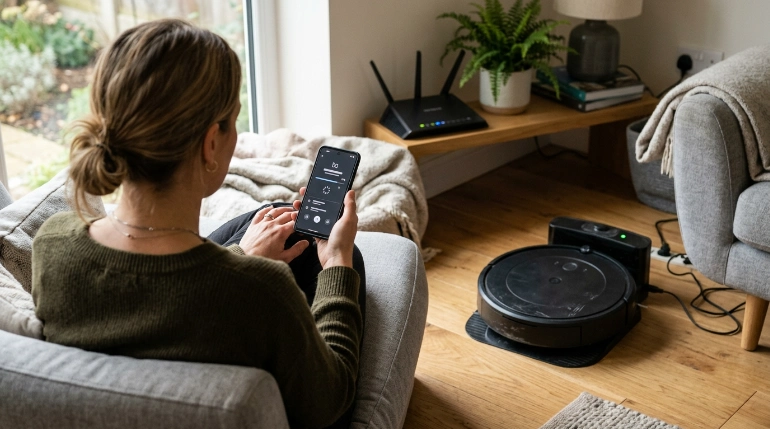
Most connected robot vacuums update through their official smartphone app. Menu names differ, but the basic process stays similar.
- Dock the robot. Make sure the base has power and the robot is charging normally.
- Open the official app. Examples include Roborock, eufy Clean, Dreamehome, Mi Home, or the appropriate iRobot app.
- Select your vacuum. Open the device page for the exact robot you want to update.
- Open Settings. Look for a gear icon, three-dot menu, or device settings page.
- Find the update menu. It may be called Firmware Update, Firmware Updates, Software Update, Device Update, or Firmware Upgrade.
- Check for an available version. Read any release information shown before installation.
- Start or enable the update. Follow the app prompts, or switch on automatic updates if the brand supports them.
- Keep the robot connected. Leave it powered and within good Wi-Fi coverage while installation completes.
- Verify normal operation. Reopen the app afterward and confirm the robot is online and responding.
Should you enable automatic firmware updates?
Automatic updates are convenient when the manufacturer officially supports them. They reduce the chance that your vacuum remains several versions behind simply because you forgot to check.
I still like checking the device after an automatic update. Confirm maps, schedules, no-go zones, and cleaning preferences still look correct.
As of 2026, update behavior still varies substantially between manufacturers and models. Use the instructions for your exact vacuum rather than copying steps from another brand.
Do Firmware Update Steps Differ by Robot Vacuum Brand?
Yes. The overall process is similar, but app menus, automatic-update settings, battery requirements, and Wi-Fi rules can differ.
The examples below come from manufacturer support documentation and illustrate why checking model-specific instructions matters.
| Brand/example | Update path or method | Power requirement documented | Network note |
|---|---|---|---|
| Roborock S6 MaxV | Roborock app: Settings → Firmware Updates | Check your model instructions | Connected app access is required |
| eufy X10 Pro Omni | Settings → Firmware Update → Auto Upgrade | Robot on powered Omni Station | Stable 2.4 GHz Wi-Fi specified |
| Dreame robot vacuums | Firmware upgrade through the applicable app | Dreame troubleshooting guidance specifies over 15% while docked | Stable internet and strong signal recommended |
| iRobot Wi-Fi models | Software is managed through the connected robot/app ecosystem | Follow model-specific support guidance | Robot must maintain appropriate connectivity |
Roborock’s official instructions, for example, direct S6 MaxV users to Settings and then Firmware Updates. Mi Home users see a slightly different menu.
eufy’s X10 Pro Omni update instructions tell users to dock the robot, power the station, confirm stable 2.4 GHz Wi-Fi, and enable Auto Upgrade in the firmware settings.
Section Takeaway: The safe method is universal, but the exact menu is not. Always match the instructions to your brand and model.
What Should You Do if the Firmware Update Fails?
Do not repeatedly reset everything the moment an update fails. Start with the simplest causes: battery level, dock power, Wi-Fi strength, and app connectivity.
Check battery and charging status
Make sure the vacuum is properly seated on its dock. Confirm that it is charging rather than merely parked near the station.
Dreame’s official firmware troubleshooting guidance says the robot should have more than 15% battery while docked before an upgrade.
Check Wi-Fi strength near the dock
A router can work perfectly in one room yet provide weak coverage where the robot charges. Firmware downloads need a stable connection long enough to complete.
- Open the app beside the dock and confirm the robot is online.
- Restart your router if your whole network is unstable.
- Avoid changing Wi-Fi credentials during an update.
- Follow your model’s supported Wi-Fi band requirements.
Restart the robot and retry
If the app reports a failed update, follow the manufacturer’s restart procedure. Reopen the app after the robot reconnects, then check the firmware screen again.
Do not factory-reset the vacuum as your first troubleshooting step. A factory reset can remove settings or require you to reconnect the device.
Do not install random firmware files
A firmware file intended for another model can be incompatible. Use only updates delivered or explicitly supplied by the vacuum manufacturer.
Contact manufacturer support if the update repeatedly fails despite adequate battery, working Wi-Fi, and a successful restart.
Expert Alert: If the robot has a swollen battery, damaged charging contacts, burned connectors, liquid damage, or an overheating dock, stop using it. Contact the manufacturer or a qualified appliance repair professional instead of opening electrical components yourself.
Section Takeaway: Most update failures should be diagnosed as power, connectivity, or software-process problems before you consider resets or hardware repair.
Frequently Asked Questions
How do I know if my robot vacuum needs a firmware update?
Open the manufacturer’s app and check the device settings for a firmware or software section. Some apps display an available version, while others manage updates automatically. You can also check the manufacturer’s support pages or release notes for your exact model.
Can I update a robot vacuum without Wi-Fi?
Most modern smart robot vacuums use Wi-Fi and their companion app to receive firmware. Older or specialized models can use different procedures. Follow the manual for your exact model instead of assuming an offline update method is available.
How long does a robot vacuum firmware update take?
There is no universal update time because firmware size, internet speed, model, and installation process differ. Keep the robot docked and connected until the app or robot clearly indicates the update has finished.
Will updating firmware delete my robot vacuum map?
A normal firmware update is not the same as a factory reset, so you should not intentionally erase maps unless the manufacturer says otherwise. Still, check saved maps, schedules, room names, and no-go zones after an update to confirm your settings remain correct.
Why is my robot vacuum firmware update stuck?
Common things to check include low battery, weak Wi-Fi, loss of dock power, an offline robot, or an interrupted app connection. Confirm those basics first, restart according to the manufacturer’s instructions, and retry only after the robot reconnects normally.
Should I always install the newest robot vacuum firmware?
Manufacturer-issued firmware generally contains fixes, compatibility changes, or feature improvements for supported devices. Read available release notes when possible, especially if your vacuum currently works well and you want to understand what a new version changes.
Can I use firmware downloaded from a forum?
Avoid unofficial firmware unless the manufacturer specifically instructs you to use that exact file. Installing incompatible or modified firmware can create software problems and may complicate support or warranty service. The official app or manufacturer support channel is the safer route.
Final Takeaway
Updating robot vacuum firmware is usually a simple app-based job. Dock the vacuum, give it enough charge, confirm a stable network connection, and use the official firmware-update menu for your model.
The most important rule is not to guess. Roborock, eufy, Dreame, iRobot, and other manufacturers use different menus and update requirements.
- Start with power: Keep the robot charged and its dock powered.
- Protect the connection: Use stable Wi-Fi during downloading and installation.
- Use official software: Update through the manufacturer app or documented process.
- Check afterward: Confirm maps, schedules, settings, and normal cleaning operation.
- Get support when needed: Repeated failures deserve model-specific manufacturer troubleshooting.
Once everything is working, enable automatic firmware updates if your manufacturer offers that option and you prefer hands-off maintenance. It is one small task that can help keep a smart cleaning appliance working with its current software and app ecosystem.