Can You Use Philips Air Purifier Without Wifi? Essential Guide

Yes, you can absolutely use your Philips air purifier without Wi-Fi. Most Philips air purifiers are designed to function perfectly using their manual controls, offering effective air purification even when disconnected from your home network. This guide explains how to operate your device offline and what features you might miss.
Many of us invest in smart home devices for their convenience, but what happens when the Wi-Fi goes down, or you simply prefer not to connect? If you’ve recently purchased a Philips air purifier and are wondering if it’s still useful without a Wi-Fi connection, you’re not alone. It’s a common concern, especially for those who prioritize simplicity or have privacy considerations. The good news is that your Philips air purifier is designed with robust offline functionality. This guide will walk you through everything you need to know to ensure your device continues to deliver clean air, no matter your connectivity status.
Philips Air Purifier Offline Functionality Explained
Your Philips air purifier is engineered to be a powerful standalone appliance. The core function of cleaning your air is entirely independent of any Wi-Fi connection. This means you can enjoy the benefits of cleaner air from the moment you plug it in, even without setting up the smart features.
The primary purpose of an air purifier is to filter pollutants, and this process relies on the physical components of the device itself. These include the fan, the motor, and, most importantly, the multi-layered filters. These elements work together to draw in air, trap particles, and release purified air back into your room, regardless of whether it’s connected to the internet.
Philips understands that not all users will connect their devices to Wi-Fi, or that internet connectivity may not always be reliable. Therefore, they build in comprehensive manual controls that allow you to manage all essential functions directly on the unit. This ensures that you always have control over your air quality, even when offline.
Essentially, the Wi-Fi connectivity on many Philips air purifiers is an added layer of convenience, offering remote control and advanced monitoring. However, it is not a prerequisite for the device to perform its fundamental job of purifying your air. You can rest assured that your investment in clean air is protected, even without embracing the smart home ecosystem.
Manual Controls: Your Gateway to Offline Operation
The physical control panel on your Philips air purifier is your primary interface for operating the device without Wi-Fi. These intuitive buttons and indicators allow you to manage all the core functions, ensuring you have complete control over your air purification experience.
On most Philips models, you’ll find a power button to turn the unit on and off. Adjacent to this, there are typically controls for adjusting the fan speed. This allows you to select a lower, quieter setting for nighttime use or a higher setting for rapid purification when needed. Many units also feature specialized modes accessible via the control panel.
These modes often include an Auto mode, which uses integrated sensors to detect air quality and automatically adjust fan speed accordingly. You might also find a Sleep mode, which dims the display lights and operates at a quieter fan speed for undisturbed rest. Some models also offer allergen or bacteria/virus modes, designed for specific purification needs.
The control panel also serves as your indicator for filter status. You’ll see clear icons or lights that alert you when it’s time to clean or replace the pre-filter, activated carbon filter, or HEPA filter. This ensures your purifier always operates at peak efficiency. By familiarizing yourself with these physical controls, you can confidently use your Philips air purifier effectively without ever needing to connect to Wi-Fi.
Understanding Your Philips Air Purifier’s Control Panel
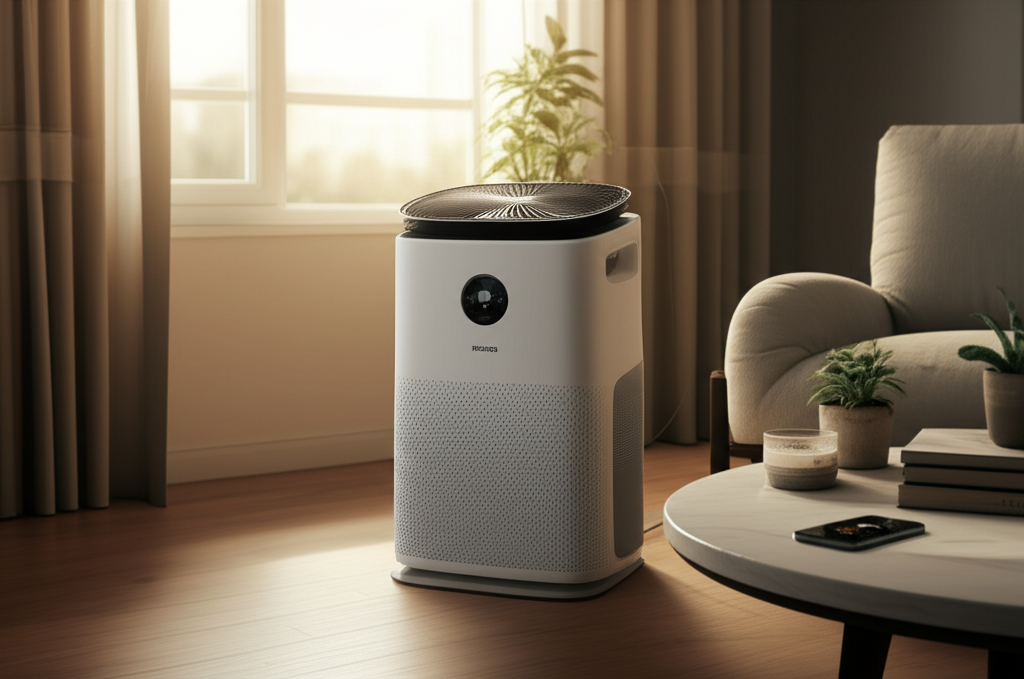
Each Philips air purifier model comes with a slightly different control panel layout, but the core functionalities remain consistent. Take a moment to locate and understand the symbols and buttons on your specific device. This is the key to unlocking its full offline potential.
You’ll typically find a prominent power symbol to switch the unit on and off. Fan speed is usually indicated by a series of fan icons, allowing you to cycle through different levels, often labeled as ‘1’, ‘2’, ‘3’, or ‘Low’, ‘Medium’, ‘High’. A dedicated button might exist for cycling through these speeds, or it might be integrated with the power button.
Look for icons representing different modes. An ‘A’ within a circle often signifies Auto mode, where the purifier intelligently adjusts based on real-time air quality readings. A moon or star icon usually denotes Sleep mode, which is optimized for quiet operation and minimal light disruption. Other modes might be present depending on your model’s advanced features.
Crucially, pay attention to the filter indicators. These are vital for maintaining optimal performance. A symbol resembling a filter might illuminate or flash when a filter needs attention. Some models differentiate between the pre-filter, activated carbon filter, and HEPA filter, providing specific alerts for each.
Knowing your control panel ensures you can manually select the best settings for your environment and always be aware of maintenance requirements. This direct interaction is the foundation of using your Philips air purifier without Wi-Fi.
Basic Operation: Powering On and Off
The most fundamental aspect of using your Philips air purifier without Wi-Fi is knowing how to turn it on and off. This simple process ensures you can activate purification when needed and conserve energy when not.
To power on your Philips air purifier, simply locate the power button on the control panel and press it. The unit will typically start in its last known setting or a default mode, such as Auto or a medium fan speed. You’ll usually see indicator lights illuminate to confirm it’s active.
To turn the device off, press the power button again. The fan will stop, and all indicator lights will extinguish, signaling that the unit is fully powered down. It’s good practice to unplug the air purifier if you plan to leave it off for an extended period, especially if you’re concerned about standby power consumption.
This basic on/off functionality is available on all Philips air purifiers, regardless of their smart capabilities. It ensures that you can always rely on your device for essential air purification whenever you need it, making it a practical appliance for any home.
Adjusting Fan Speed Manually
Controlling the fan speed is crucial for balancing purification effectiveness with noise levels and energy consumption. Without Wi-Fi, you’ll use the manual buttons on the control panel to make these adjustments.
Locate the fan speed controls on your Philips air purifier’s interface. This is often represented by fan icons or numbered settings. Pressing the designated button will cycle through the available speeds, typically ranging from a quiet low setting to a powerful high setting.
Consider the environment when selecting a fan speed. For continuous, quiet operation, especially in bedrooms, a lower speed is often ideal. When you need to quickly clear the air of strong odors or pollutants, such as after cooking or if you have pets, a higher speed will be more effective.
Many Philips models also include an ‘Auto’ mode accessible via the control panel. In this mode, the purifier uses its built-in sensors to detect the air quality and automatically adjusts the fan speed to maintain optimal purification. This offers a convenient hands-off approach to fan speed management without requiring Wi-Fi.
Mastering manual fan speed adjustment ensures you can tailor the air purifier’s performance to your specific needs at any given moment. This direct control is a cornerstone of offline operation, providing flexibility and efficiency.
Utilizing Special Modes Without the App
Even without a Wi-Fi connection, your Philips air purifier likely offers specialized modes designed to enhance your purification experience. These modes are accessible directly from the unit’s control panel and cater to different situations and preferences.
One of the most common special modes is ‘Auto’ mode. Activated by a button often marked with an ‘A’ or an auto icon, this setting allows the air purifier to intelligently manage itself. It uses internal sensors to monitor air quality (often indicated by a color-coded light ring) and automatically adjusts the fan speed to optimize purification efficiency and energy use.
Another frequently found mode is ‘Sleep’ mode, usually represented by a moon or star icon. Engaging this mode typically dims all the indicator lights on the control panel to minimize disturbances in a dark room. Simultaneously, the fan speed is reduced to its quietest setting, ensuring peaceful operation throughout the night.
Some Philips models may also feature allergen, bacteria, or virus modes. These modes are pre-programmed to run at specific fan speeds or durations to target particular airborne contaminants more aggressively. Refer to your specific model’s manual to understand the exact function of any specialized modes available on your unit.
By understanding and utilizing these manual modes, you can effectively leverage your Philips air purifier’s advanced features for enhanced comfort and cleaner air, all without needing to connect to your home network. This offers a robust and user-friendly experience for every situation.
Filter Replacement and Maintenance: A Manual Affair
Maintaining your Philips air purifier is crucial for its performance, and thankfully, this is largely a manual process. The device itself will alert you when maintenance is required, ensuring you can keep it running efficiently without any smart connectivity.
Your Philips air purifier is equipped with indicator lights or icons on the control panel that signal when it’s time for filter maintenance. These alerts typically distinguish between cleaning the pre-filter and replacing the main filters, such as the Activated Carbon filter and the HEPA filter. These indicators are designed to be easily visible and understandable.
The pre-filter, which captures larger particles like dust and hair, often just needs regular cleaning. You can usually do this by vacuuming it or rinsing it under running water. Always ensure the pre-filter is completely dry before reinserting it into the unit.
When the indicators for the Activated Carbon and HEPA filters light up, it signifies that these filters have reached the end of their effective lifespan and need replacement. These are typically non-washable and must be replaced with genuine Philips replacement filters to ensure optimal performance and air quality. You can purchase these filters directly from Philips or authorized retailers.
After replacing the filters, you will need to reset the filter indicator light. This is usually done by pressing and holding a specific button or combination of buttons on the control panel for a set duration, typically around 3-5 seconds. Your user manual will provide the exact steps for your model. This manual maintenance process ensures your air purifier continues to deliver clean air effectively, year after year.
When Do I Need to Replace Filters?
Your Philips air purifier takes the guesswork out of filter replacement. The device itself will provide clear signals when its filters need attention, ensuring you always operate with optimal purification capabilities.
Most Philips air purifiers feature dedicated filter indicator lights on the control panel. These lights are designed to be intuitive. You’ll typically see distinct indicators for the pre-filter, the Activated Carbon filter, and the HEPA filter. These indicators will illuminate or flash when the respective filter has reached its end of life and requires replacement.
The lifespan of each filter varies depending on usage, environmental conditions, and the specific model. However, the built-in indicators are calibrated to alert you based on actual operating hours and filter performance. This ensures you replace them at the optimal time for effective air purification.
For the pre-filter, which captures larger particles, you might see an indicator for cleaning rather than replacement. This typically involves simply vacuuming or washing the filter. For the more specialized Activated Carbon and HEPA filters, the indicator will signal the need for a complete replacement.
Always refer to your specific Philips air purifier’s user manual for precise details on filter lifespan and the meaning of each indicator. This proactive approach to filter maintenance guarantees that your device consistently delivers the highest quality purified air to your home.
How to Reset Filter Indicators
After replacing the filters in your Philips air purifier, it’s essential to reset the corresponding indicator lights. This action tells the purifier that new filters are installed, and it will begin tracking their lifespan anew.
The process for resetting filter indicators is typically straightforward and performed directly on the air purifier’s control panel. While specific button combinations can vary slightly between models, the general principle involves pressing and holding a particular button or set of buttons for a few seconds.
For example, on many Philips models, you might need to press and hold the ‘Filter Reset’ button, or a button with a filter icon, for approximately 3 to 6 seconds until the indicator light turns off or a confirmation beep sounds. Some models might require holding down the power button or a combination of fan speed buttons.
Always consult your Philips air purifier’s user manual for the exact instructions tailored to your specific model. The manual will clearly outline which button(s) to press and for how long to successfully reset the filter status indicators.
Performing this reset is crucial. If you don’t reset the indicators, the unit may continue to signal that filters need replacement, or worse, it might shut down prematurely, assuming the new filters are old. Proper resetting ensures accurate monitoring and continued optimal performance of your air purifier.
Manual Air Quality Monitoring
While the app offers detailed real-time air quality data, your Philips air purifier provides essential visual cues directly on the unit to keep you informed about your indoor air quality, even without Wi-Fi.
Many Philips air purifiers feature a color-coded air quality sensor and indicator ring. This ring, often located around the top or front of the unit, changes color to reflect the current level of airborne pollutants. The colors typically range from blue (good air quality) through yellow (moderate) to red (poor air quality).
This visual feedback allows you to quickly assess your environment at a glance. If the ring consistently shows a less-than-ideal color, it might prompt you to manually increase the fan speed or check if the filters need cleaning or replacement. This intuitive system keeps you informed without needing to check a smartphone.
Some models may also display a numerical air quality index (AQI) on a small digital screen. This provides a more precise reading of the air quality in your room. While not as detailed as the app’s historical data, it offers an immediate and objective measure of your air’s condition.
These manual monitoring features ensure you remain aware of your air quality and can take appropriate action to improve it. They empower you to maintain a healthy indoor environment, relying solely on the physical indicators of the device itself.
Troubleshooting Common Issues Offline
Even without Wi-Fi, you might encounter issues with your Philips air purifier. Fortunately, most common problems can be resolved by understanding the device’s basic functions and performing simple manual checks.
If your air purifier isn’t turning on, first ensure it’s properly plugged into a working power outlet. Check if the power cord is damaged. If the unit still doesn’t respond, try pressing and holding the power button for a few seconds, as some models have a soft reset function.
If the air purifier is running but not purifying effectively, the most common cause is clogged filters. Check the filter indicator lights. If they are on, it’s time to clean the pre-filter or replace the main filters. Ensure all filters are correctly installed after cleaning or replacement.
Unusual noises often indicate an issue with the fan or a foreign object inside the unit. Turn off and unplug the purifier. Gently check the fan blades for obstructions if accessible, and ensure the unit is placed on a stable, level surface. If the noise persists, contact Philips customer support.
If the air quality sensor appears inaccurate (e.g., showing poor quality constantly or never changing), try cleaning the sensor area. Dust or debris can obstruct the sensor. Refer to your manual for the sensor’s location and cleaning instructions, typically involving a dry cotton swab.
Remember to always unplug the device before performing any cleaning or maintenance. These manual troubleshooting steps can resolve many common operational hiccups, ensuring your Philips air purifier continues to function smoothly without needing an internet connection.
What Features Are Missed Without Wi-Fi?
While your Philips air purifier remains highly functional without a Wi-Fi connection, you will miss out on certain convenience-oriented features that are enabled by smart connectivity.
The most significant feature missed is remote control. Without Wi-Fi, you cannot operate your air purifier using the Philips Clean Home+ app on your smartphone or tablet. This means you can’t turn it on or off, adjust settings, or change modes when you’re away from home.
Advanced air quality monitoring and historical data tracking are also unavailable. The app typically provides detailed insights into your indoor air quality trends over time, including particulate matter levels (PM2.5) and allergen indexes. Without Wi-Fi, you’re limited to the real-time visual indicators on the unit itself.
Voice control integration with smart assistants like Amazon Alexa or Google Assistant is another feature that requires a Wi-Fi connection and app setup. You won’t be able to use voice commands to control your air purifier if it’s not connected to the network.
Automatic software updates are also reliant on Wi-Fi. These updates can sometimes introduce new features or improve the performance and efficiency of your air purifier. Without connectivity, your device will operate with the firmware it was initially programmed with.
Finally, personalized schedules and custom mode creation are typically app-based features. Without Wi-Fi, you’ll rely on the pre-set modes and manual controls available directly on the unit. Despite these omissions, the core function of air purification remains fully intact and effective.
Benefits of Using Philips Air Purifier Without Wi-Fi
Opting to use your Philips air purifier without Wi-Fi offers several distinct advantages, catering to users who prioritize simplicity, privacy, or reliability.
One primary benefit is enhanced privacy. By not connecting your air purifier to the internet, you reduce the number of devices that can potentially collect and transmit data about your household habits or environment. This is a significant consideration for privacy-conscious individuals.
Simplicity of operation is another major plus. Manual controls are straightforward and intuitive. You don’t need to download an app, create an account, or navigate through software interfaces. This makes it incredibly easy to use for everyone in the household, regardless of their technical proficiency.
Reliability is also a key advantage. Your air purifier’s core functions are not dependent on your home Wi-Fi network’s stability or internet service. This means it will continue to purify your air even during internet outages or if your router malfunctions, ensuring uninterrupted air quality management.
Furthermore, using the device offline can sometimes lead to less power consumption, as there’s no energy dedicated to maintaining a Wi-Fi connection or communicating with cloud servers. While the difference might be minimal, it contributes to overall energy efficiency.
Finally, it eliminates the need for software updates and troubleshooting related to connectivity issues. You can simply plug it in, use the manual controls, and focus on enjoying cleaner air without any digital complications.
Is a Philips Air Purifier Worth It Without Wi-Fi?
Absolutely. A Philips air purifier is a worthwhile investment even if you choose not to connect it to Wi-Fi. The fundamental purpose of any air purifier is to clean the air in your home, and Philips devices excel at this core function through their robust filtration systems and effective fan mechanisms.
The advanced multi-layer filtration technology, including HEPA and activated carbon filters, works diligently to capture allergens, pollutants, viruses, and odors. This essential purification process is entirely independent of smart connectivity. You will still benefit significantly from improved indoor air quality, reduced allergy symptoms, and a fresher living environment.
The manual controls provided on Philips air purifiers are designed to be user-friendly and offer sufficient functionality for most users. You can easily control power, fan speed, and special modes like Auto or Sleep, ensuring effective operation tailored to your needs. The filter replacement indicators also ensure you maintain peak performance.
While the app offers added convenience and data insights, it is an optional enhancement rather than a necessity for the device to perform its primary job. The core health benefits of breathing cleaner air are fully accessible with offline use. Therefore, a Philips air purifier remains a highly effective and valuable appliance for enhancing your home’s air quality, regardless of its Wi-Fi status.
Frequently Asked Questions
Can I use my Philips air purifier if my Wi-Fi is down?
Yes, absolutely. Your Philips air purifier is designed to function perfectly using its manual controls on the unit itself, even when your Wi-Fi connection is down. The core purification process does not rely on internet connectivity.
Do I need Wi-Fi for basic operation like turning it on and off?
No, you do not need Wi-Fi for basic operation. You can easily turn your Philips air purifier on and off, adjust fan speeds, and select modes like Auto or Sleep using the physical buttons on the control panel.
Will I miss out on essential air purification features without Wi-Fi?
No, you will not miss out on essential air purification features. The device’s ability to filter pollutants and improve air quality is fully functional without Wi-Fi. You will only miss out on app-based conveniences like remote control and detailed data tracking.
How do I know when to replace filters if I’m not using the app?
Your Philips air purifier has built-in filter indicator lights on the control panel. These lights will illuminate or flash to alert you when it’s time to clean the pre-filter or replace the Activated Carbon and HEPA filters, regardless of Wi-Fi connection.
Can I still monitor air quality without Wi-Fi?
Yes, you can still monitor air quality. Many Philips models feature a color-coded air quality indicator ring on the unit that visually displays the current air quality level. Some models might also show a numerical index on a display screen.
Is it difficult to set up a Philips air purifier without Wi-Fi?
No, setting up a Philips air purifier without Wi-Fi is very simple. Just plug it into a power outlet, and you can start using it immediately with the manual controls. No app or network configuration is required.
Conclusion
In conclusion, the question “Can you use Philips air purifier without Wi-Fi?” is definitively answered with a resounding yes. Your Philips air purifier is a powerful and effective appliance designed for robust offline performance. While the Wi-Fi connectivity and associated app offer added layers of convenience, such as remote control and detailed data insights, they are by no means essential for the device to fulfill its primary function: purifying your air. By utilizing the intuitive manual controls on the unit, you can effortlessly manage power, fan speed, and specialized modes, ensuring optimal air quality in your home. Furthermore, the built-in filter indicators and visual air quality sensors provide all the necessary information for maintenance and awareness without needing a network connection. Choosing to use your Philips air purifier without Wi-Fi prioritizes simplicity, privacy, and uninterrupted operation, making it a reliable and valuable addition to any home seeking cleaner, healthier air.