
How Do I Reconnect My Robot Vacuum to Wi-Fi?

Quick Answer
To reconnect a robot vacuum to Wi-Fi, place it on its charged dock, connect your phone to the correct home Wi-Fi network, open the vacuum’s app, and choose the option to reconnect or change Wi-Fi. Then put the robot into pairing mode and enter your network password; for example, iRobot’s official Wi-Fi setup instructions guide owners through the same basic process.
Quick Reconnection Steps
- Charge the robot: Place it on the dock and confirm it has power.
- Check your phone: Connect your phone to the Wi-Fi network you want the robot to use.
- Open the app: Look for “Wi-Fi,” “Network,” “Reconnect,” “Change Wi-Fi,” or “Add Device.”
- Start pairing mode: Follow the app’s model-specific button instructions until the Wi-Fi light flashes or a voice prompt sounds.
- Enter the password: Type your home Wi-Fi password carefully and complete setup.
- Test the connection: Wait for the app to show the vacuum as online, then send a simple cleaning command.
If It Still Won’t Connect
- Check Wi-Fi compatibility: Your model may require a 2.4 GHz network.
- Check app permissions: Bluetooth, location, and local-network access may be required during setup.
- Restart first: Reboot the robot and router before considering a factory reset.
When a robot vacuum suddenly shows “offline,” I start with the network before assuming the vacuum itself is broken. A changed Wi-Fi password, new router, disabled 2.4 GHz band, or missing phone permission can all produce the same frustrating symptom.
This guide covers the full reconnection process for common robot vacuum setups in 2026. It also explains what to do when the normal pairing steps fail.
In This Guide
How Do I Reconnect My Robot Vacuum to Wi-Fi?
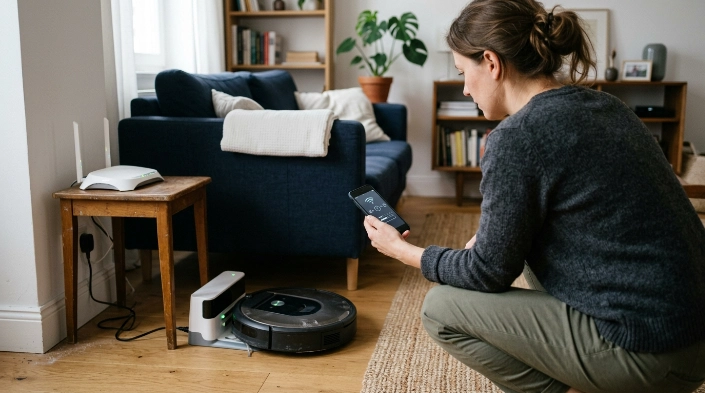
In most cases, you reconnect a robot vacuum through its manufacturer’s mobile app. The app transfers your home network details to the vacuum while the robot is in Wi-Fi pairing mode.
Reconnecting a robot vacuum means replacing or refreshing the network information stored inside the vacuum. This is different from resetting the entire machine.
Step 1: Put the robot on its charging dock
Start with the vacuum powered on and properly seated on its dock. A low battery can interrupt pairing before the setup finishes.
- Confirm the dock is connected to power.
- Check that the vacuum shows a charging indication.
- Move the dock closer to the router temporarily if Wi-Fi coverage is weak.
Step 2: Connect your phone to the correct network
Your phone should normally be connected to the home network you want the vacuum to join. Avoid using a public hotspot or an isolated guest network during initial setup unless your manufacturer specifically supports it.
Step 3: Open the robot vacuum app
Open the official app and find the vacuum’s network settings. The wording differs by manufacturer.
- Reconnect Wi-Fi
- Change Wi-Fi
- Network settings
- Add device
- Set up a new product
Step 4: Put the vacuum into pairing mode
The correct buttons depend on the exact model. Follow the combination shown inside the app or in your owner’s manual rather than copying instructions for a different vacuum.
A flashing Wi-Fi symbol, blinking indicator, beep, or spoken message normally confirms pairing mode. Keep your phone near the vacuum during this stage.
Step 5: Enter the Wi-Fi password
Type the password carefully instead of relying on an old saved password. A single wrong character can make the setup appear to complete before the robot eventually reports a connection failure.
- Check uppercase and lowercase letters.
- Check numbers that resemble letters.
- Make sure you’re joining your home network, not the temporary network created by the robot.
Step 6: Wait for the robot to appear online
Don’t close the app immediately after entering the password. Give the robot time to join the router and register with the manufacturer’s service.
Once it shows online, send a small command such as “start,” “pause,” or “return to dock.” That confirms app-to-vacuum communication is working.
Why Did My Robot Vacuum Disconnect From Wi-Fi?
A robot vacuum can go offline even when the vacuum motor, battery, and navigation system are working normally. The problem is often somewhere between the app, router, and robot’s saved network settings.
| What happened | Likely cause | First thing to try |
|---|---|---|
| You installed a new router | The robot still remembers the old network | Run the app’s change/reconnect Wi-Fi setup |
| You changed the Wi-Fi password | Saved credentials are no longer valid | Enter the new password through the app |
| The vacuum works near the router only | Weak wireless coverage | Test closer to the router or main mesh node |
| Setup fails immediately | Wrong frequency, password, or app permission | Check 2.4 GHz support and phone permissions |
| It went offline after a power outage | Router or robot did not reconnect cleanly | Restart the router and robot |
My rule is simple: if other devices also lost internet access, troubleshoot the router first. If everything else works, focus on the vacuum’s saved network, compatibility, and app.
Temporary manufacturer-server problems can also make an app report a vacuum as offline. Before resetting anything, wait briefly and reopen the app if your home internet is otherwise working.
Does a Robot Vacuum Need 2.4 GHz Wi-Fi?
Many robot vacuums use 2.4 GHz Wi-Fi, but you should not assume every model is limited to it. Compatibility now varies significantly between manufacturers and even between models from the same brand.
As of 2026, iRobot lists some Roomba models with both 2.4 GHz and 5 GHz support, while other Roomba models remain 2.4 GHz only. Roborock states that its current robot lineup connects through 2.4 GHz Wi-Fi, and Roborock’s Wi-Fi band guidance recommends enabling a 2.4 GHz network when required.
| Network | Typical characteristic | Robot vacuum consideration |
|---|---|---|
| 2.4 GHz | Longer practical range, lower peak speed | Widely supported by connected robot vacuums |
| 5 GHz | Higher potential speed, shorter practical range | Supported by some newer models, but not all |
| Combined dual-band SSID | Router automatically manages both bands | Often works, but some older devices pair more reliably when bands are separated |
Eufy’s support documentation also states that many RoboVac models require 2.4 GHz Wi-Fi. You can check the manufacturer’s RoboVac network compatibility guidance before changing router settings.
What if my router combines 2.4 GHz and 5 GHz?
Modern routers often broadcast both frequencies under one network name, or SSID. Many robot vacuums handle this without trouble.
If pairing repeatedly fails, check whether your router lets you temporarily separate the 2.4 GHz and 5 GHz names. Connect your phone to the 2.4 GHz network, pair the robot, and then restore your preferred router setup if appropriate.
Don’t change advanced router settings blindly. Your vacuum’s model-specific support page should take priority over generic troubleshooting advice.
What If the App Cannot Find My Robot Vacuum?
If the app cannot discover the vacuum, the failure may happen before your Wi-Fi password is even sent. Phone permissions and pairing mode become especially important at this stage.
Check Bluetooth and local permissions
Some manufacturers use Bluetooth to discover a nearby robot before transferring Wi-Fi information. Keep Bluetooth enabled while pairing if the app requests it.
- Allow Bluetooth access when requested.
- Allow nearby-device access on supported Android versions.
- Allow local-network access on iPhone when requested.
- Enable location permission if the manufacturer’s setup process requires it.
- Keep the official app updated.
Temporarily disable network tools that can interfere
A VPN, privacy relay, firewall rule, or aggressive mobile-data switching feature can occasionally complicate smart-device setup. Temporarily disabling the relevant feature can help you isolate the problem.
Turn it back on after pairing and confirm the robot still works. You should not weaken your normal network security permanently just to connect a vacuum.
Restart the network in the right order
A simple restart clears many temporary connection problems without deleting maps or schedules. I prefer this before any reset procedure.
- Close the robot vacuum app.
- Restart the robot using the manufacturer’s normal reboot procedure.
- Restart your Wi-Fi router.
- Wait until normal internet access returns.
- Reconnect your phone to Wi-Fi.
- Open the vacuum app and try pairing again.
Expert Alert: If the charging dock, power adapter, battery, or vacuum shows heat damage, sparking, liquid damage, or a burning smell, unplug it and stop troubleshooting. Use the manufacturer’s service channel or a qualified repair professional.
Should I Reset Wi-Fi or Factory Reset the Vacuum?
Use a Wi-Fi reset before a factory reset whenever possible. A network reset is intended to clear connection details, while a factory reset can erase broader settings.
Choose a Wi-Fi reset when:
- You changed routers.
- You changed the Wi-Fi name or password.
- The robot shows offline but otherwise works normally.
- The app specifically asks you to reset the network connection.
- You need to move the robot to a different home network.
Consider a factory reset only when:
- The manufacturer’s troubleshooting instructions explicitly require it.
- The robot is still tied to another owner’s account.
- Normal reboots and Wi-Fi resets have failed.
- Support staff instruct you to perform one.
A factory reset may remove maps, schedules, room names, preferences, automations, or account associations depending on the model. Check the manufacturer’s instructions before continuing.
Button combinations also vary widely. Never assume that a reset sequence for one Roomba, Roborock, Shark, or eufy model applies to another.
How Do I Stop My Robot Vacuum Going Offline Again?
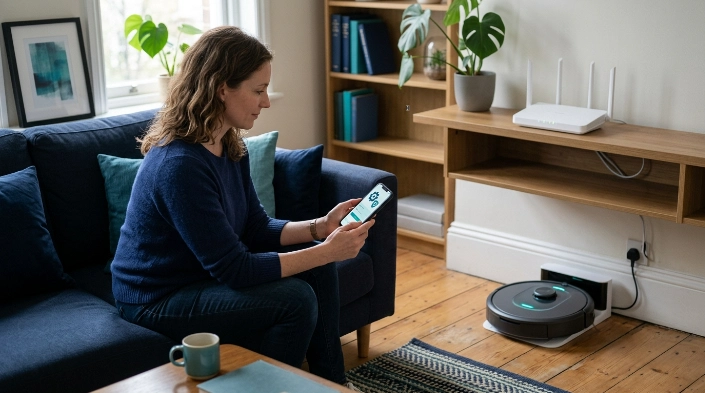
A stable robot vacuum connection depends more on reliable coverage than raw internet speed. Robot vacuums exchange relatively small amounts of control and status data, so consistency matters.
Keep the dock in a good Wi-Fi area
Avoid placing the dock in a deep Wi-Fi dead zone, behind dense furniture, or far from every router or mesh node. The robot should have a reliable connection when sitting at its normal base.
Consumer Reports also recommends thoughtful dock placement for reliable robot operation in its robot vacuum setup guidance.
Avoid unnecessary Wi-Fi name and password changes
Smart appliances remember the network credentials entered during setup. Changing either the SSID or password can force connected devices to be configured again.
Keep the app and robot software updated
Manufacturers regularly release app and firmware updates for compatibility and stability. Install legitimate updates through the official app rather than third-party downloads.
Think about smart-home privacy too
Wi-Fi-connected robot vacuums may send cleaning information, device data, and—in some models—mapping-related information through manufacturer services. Review the privacy controls available for your model and account.
Consumer Reports’ robot vacuum privacy overview explains why connected vacuums deserve the same basic security attention as other smart-home devices.
- Use a unique account password.
- Enable stronger account security when the manufacturer offers it.
- Install security and firmware updates.
- Remove a robot from your account before selling or giving it away.
- Avoid sharing account credentials unnecessarily.
Section Takeaway: A stable network, correct Wi-Fi band, updated software, and sensible dock location prevent many repeat connection problems.
Frequently Asked Questions
Do I need to reconnect my robot vacuum after changing routers?
Usually, yes, if the new router uses a different Wi-Fi name or password. If you configure the replacement router with exactly the same compatible network credentials, some vacuums may reconnect automatically.
Why won’t my robot vacuum connect to 5 GHz Wi-Fi?
Your specific model may support only 2.4 GHz. Check its manual or official compatibility page because support varies, and newer models from some brands can connect to both 2.4 GHz and 5 GHz networks.
Why does my robot vacuum say offline when my Wi-Fi works?
The robot may have lost its router connection, retained an old password, entered a Wi-Fi dead zone, or lost access to the manufacturer’s online service. Restart the robot and app before resetting network settings.
Will reconnecting Wi-Fi erase my robot vacuum’s map?
A normal Wi-Fi reconnection usually isn’t the same as a factory reset, but behavior varies by manufacturer. Use the app’s “Reconnect” or “Change Wi-Fi” option first and check the model documentation before performing a full reset.
Can I connect my robot vacuum to a phone hotspot?
Some models may work with a compatible hotspot, but setup can be awkward because the phone often needs to run the vacuum app at the same time. A normal home Wi-Fi network is usually easier and more reliable.
Why does pairing fail even though my password is correct?
Check Wi-Fi-band compatibility, Bluetooth and local-network permissions, VPN settings, signal strength, and router security compatibility. Then reboot both the robot and router before attempting another pairing session.
Do I need internet for a robot vacuum to clean?
Many robot vacuums can still perform basic button-started cleaning without an active internet connection. App control, remote commands, cloud maps, schedules, notifications, and smart-home integrations may depend on the model’s Wi-Fi and online services.
The main takeaway: reconnecting a robot vacuum is usually a network setup problem, not a sign that the vacuum has failed. Start with the app’s reconnect option, verify the correct Wi-Fi band and password, check phone permissions, and reboot before using a factory reset.
If those steps fail, find the exact model number on the vacuum or its label and follow that manufacturer’s pairing procedure. Model-specific instructions are safer than experimenting with reset-button combinations.
