
Why Is My Robot Vacuum Offline?

Quick Answer
Your robot vacuum usually shows offline because it lost Wi-Fi, has weak signal at the dock, lost power, or can no longer communicate through its app. Start by checking power and internet access, then restart the robot, router, and app before resetting Wi-Fi. Manufacturer robot connectivity troubleshooting also recommends confirming that the home network itself has internet access.
Check These First
- Check power: Make sure the robot and charging dock have power.
- Test Wi-Fi: Confirm another device can access the internet on your home network.
- Refresh the app: Fully close the vacuum app and reopen it.
- Restart equipment: Reboot the robot and your router.
- Check Wi-Fi band: Verify whether your model requires a 2.4 GHz network.
- Reconnect last: Reset the robot’s Wi-Fi only if simpler fixes fail.
One Useful Test
- Move the robot close to the router. If it reconnects there, weak Wi-Fi coverage near the dock is the likely cause.
If you’re wondering, “Why is my robot vacuum offline?” the problem is usually easier to narrow down than it looks. I treat an offline robot vacuum as a connection problem first, not a cleaning-performance problem.
This guide covers the checks I use in order, from simple power and Wi-Fi issues to router settings, app permissions, and Wi-Fi resets.
In This Guide
- What does offline mean on a robot vacuum?
- Why does my robot vacuum keep going offline?
- How do I get my robot vacuum back online?
- Can 2.4 GHz or 5 GHz Wi-Fi cause the problem?
- Could the app or phone make the vacuum look offline?
- When should I reset Wi-Fi or contact support?
- Frequently asked questions
What Does Offline Mean on a Robot Vacuum?
An offline message usually means the mobile app cannot communicate with the robot through your home network or the manufacturer’s cloud service. It does not automatically mean the vacuum itself is broken.
Definition: An offline robot vacuum is a Wi-Fi-enabled vacuum that is temporarily unavailable to its companion app, even though the robot may still have power and may still clean using its physical buttons.
That distinction matters. Some robot vacuums can still start a basic cleaning cycle without an active internet connection.
For example, Roborock states that compatible robots can perform basic full-home or spot cleaning without Wi-Fi. App-based features need connectivity.
I first press the physical clean or start button. If the robot responds normally, I focus on the network and app instead of assuming there is a motor, sensor, or battery fault.
- Robot cleans manually: The vacuum itself is probably operational.
- Robot has no lights or response: Check charging and power first.
- Robot works but app says offline: Focus on Wi-Fi, the app, or cloud communication.
- Robot repeatedly disconnects: Check signal strength and router compatibility.
Why Does My Robot Vacuum Keep Going Offline?
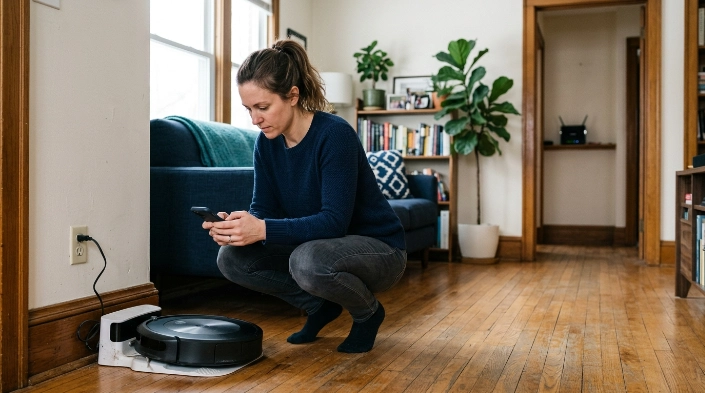
The most common causes are loss of power, weak Wi-Fi, changed network credentials, an incompatible Wi-Fi band, app problems, or router settings. The exact cause often becomes clear from when the problem started.
| What You Notice | Likely Cause | First Check |
|---|---|---|
| Robot suddenly shows offline | Temporary Wi-Fi or internet failure | Test internet on another device |
| Offline after changing router | Old network credentials remain stored | Reconnect robot to the new network |
| Offline after changing Wi-Fi password | Stored password is no longer valid | Run Wi-Fi setup again |
| Works near router but not at dock | Weak signal near charging station | Test the robot closer to router |
| App says offline but robot works | App, account, or cloud issue | Force-close and reopen the app |
| Connection fails during setup | Band, password, permission, or router issue | Check model-specific Wi-Fi requirements |
Power can be surprisingly easy to overlook. eufy’s support documentation lists a powered-off robot or unpowered charging base among reasons a RoboVac can appear offline.
Network changes are another big clue. If you replaced your router, renamed the Wi-Fi network, or changed its password, reconnecting the robot is often necessary.
How Do I Get My Robot Vacuum Back Online?
Use the simplest fixes first. I avoid factory resets until the end because they can remove maps, schedules, preferences, or other stored settings on some models.
- Wake the robot. Put it on its powered charging dock and press its main button.
- Test your internet. Use a phone or computer connected to the same home network.
- Refresh the vacuum app. Fully close it, then open it again.
- Restart the robot. Follow your model’s normal reboot procedure.
- Restart the router. Let it finish reconnecting before checking the vacuum.
- Move the robot closer. Test it within strong Wi-Fi coverage.
- Check the Wi-Fi band. Some robots require 2.4 GHz.
- Reconnect Wi-Fi. Use the manufacturer’s app instructions if it remains offline.
The order matters. A temporary router problem can disappear after a restart, while resetting the vacuum first creates extra setup work.
iRobot’s current connectivity guidance also suggests verifying internet access and rebooting or reconnecting the robot when connection errors persist.
Give the robot a short period to reconnect after restarting equipment. Smart-home devices don’t always appear online the instant the router finishes booting.
If it reconnects near the router but drops again at the dock, the problem points toward coverage. Changing the dock location or improving Wi-Fi coverage may work better than repeatedly resetting the vacuum.
Can 2.4 GHz or 5 GHz Wi-Fi Cause the Problem?
Yes. Wi-Fi band compatibility can cause setup failures or repeated offline messages, but the requirements differ by robot model.
Don’t assume every robot vacuum is 2.4 GHz-only. As of 2026, iRobot lists some Roomba models with both 2.4 GHz and 5 GHz support, while other models remain limited to 2.4 GHz.
| Example | 2.4 GHz | 5 GHz |
|---|---|---|
| Roomba Essential | Supported | Not listed as supported |
| Roomba j7/j9 | Supported | Supported |
| Roborock support guidance | Required for models covered by its current guidance | Not supported in that guidance |
| Many eufy RoboVac models | Supported | Model-dependent; verify your manual |
The safest approach is simple: check your exact model’s support page before changing router settings.
If your router combines 2.4 GHz and 5 GHz under one network name, setup may still work. If it doesn’t, temporarily separating the bands can help diagnose compatibility issues.
Also look for guest-network isolation, device limits, MAC filtering, or firewall settings. These can allow a phone onto Wi-Fi while blocking communication with smart-home devices.
Manufacturer guidance from Roborock support also recommends checking Wi-Fi credentials, permissions, router settings, and signal quality when a robot appears offline.
Could the App or Phone Make the Vacuum Look Offline?
Yes. Sometimes the robot is still connected, but the phone app cannot discover or communicate with it correctly.
I check the phone side before doing a full robot reset because it takes only a minute.
- Force-close the app: Reopen it and refresh the device screen.
- Check app updates: Install the latest supported version.
- Confirm permissions: Bluetooth, location, or local-network permission may be required during setup.
- Check the account: Make sure you’re signed into the account linked to the robot.
- Disable VPN temporarily: A VPN or restrictive network configuration can interfere with setup on some systems.
- Try another phone: This can separate a phone-specific problem from a robot or router problem.
iRobot notes that Bluetooth is used during setup on compatible models. Its instructions may also request location access so the phone can detect nearby devices.
Roborock similarly tells users to enable required app permissions during Wi-Fi setup. That means an app permission change after an operating-system update can sometimes look like a robot problem.
For another manufacturer example, eufy’s offline troubleshooting guidance recommends refreshing the app, checking Wi-Fi status, restarting equipment, and reconfiguring the network when necessary.
When Should I Reset Wi-Fi or Contact Support?
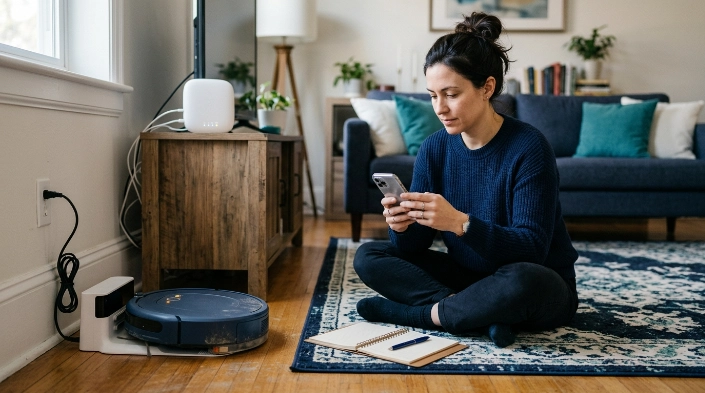
Reset the robot’s Wi-Fi when the network information stored in the robot is no longer correct or ordinary restarts don’t work. A new router, new Wi-Fi name, or changed password are strong reasons to reconnect it.
Use the model-specific reset procedure. Button combinations differ between brands and even between models from the same brand.
A Wi-Fi reset is also different from a factory reset. Start with the least destructive option available.
- Wi-Fi reset: Usually clears or reopens network setup.
- Reconnection: Links the robot with your current home network again.
- Factory reset: May erase maps, schedules, cleaning history, or preferences.
Contact manufacturer support if the robot stays offline on multiple known-working networks. That test helps separate a router problem from a possible robot communication fault.
Support is also appropriate if the Wi-Fi indicator behaves abnormally, the robot constantly restarts, or it cannot complete setup despite correct credentials and strong signal.
Expert Alert: If the dock has no power after you’ve tested the wall outlet and inspected the removable cable, don’t open or repair its internal power supply yourself. Use the manufacturer or a qualified electrical repair professional.
Frequently Asked Questions
Why is my robot vacuum offline even though my Wi-Fi works?
Your internet can work while the vacuum still has a weak signal, outdated network credentials, an app communication problem, or incompatible router settings. Test the robot closer to the router, restart it, refresh the app, and confirm its saved Wi-Fi network.
Will my robot vacuum still clean when it is offline?
Many models can still perform basic cleaning from their physical buttons without Wi-Fi. However, app controls, remote starts, schedule editing, maps, notifications, and other connected features may be unavailable until the robot reconnects.
Why did my robot vacuum go offline after I changed my Wi-Fi password?
The robot may still be trying to connect with the old password. Open its companion app and use the Wi-Fi reconnection or network-change process for your exact model.
Does a robot vacuum need 2.4 GHz Wi-Fi?
Many robot vacuums use 2.4 GHz, but compatibility varies. Some newer models support both 2.4 GHz and 5 GHz. Check your exact model rather than assuming one band is required.
Why does my robot vacuum keep disconnecting at its charging dock?
The dock may be in a Wi-Fi weak spot. Move the robot closer to your router as a test. If it stays connected there, improve coverage or consider a better dock location.
Should I factory-reset my robot vacuum if it says offline?
Not first. Check power, internet access, Wi-Fi signal, the app, and ordinary restarts before a factory reset. A full reset can remove saved maps, schedules, or preferences on some models.
How do I know whether the robot or my router is the problem?
Try connecting the robot to another compatible network or hotspot if your manufacturer allows it. If another network works, your home router or its settings are the more likely cause.
Final Takeaway
When a robot vacuum shows offline, start with power, internet access, app refresh, and a restart. Then check Wi-Fi strength and your model’s supported frequency band before resetting its network connection.
The key is to diagnose one layer at a time. That avoids unnecessary factory resets and usually makes the real cause much easier to spot.
