
How Do I Fix Robot Vacuum Mapping Issues? Complete 2026 Guide

Quick Answer
To fix robot vacuum mapping issues, return the vacuum to its normal dock, clean its navigation sensors, remove floor obstacles, check the app and Wi-Fi connection, then run a complete mapping cycle without moving the robot. If the saved map is still distorted or missing, restore an earlier map when your model supports it or delete the damaged map and remap from the dock. You can also check official smart-map troubleshooting guidance for model-specific options.
Try these fixes in order
- Return it to the dock: Let the robot establish its position from its normal starting point.
- Clean navigation sensors: Wipe the camera, LiDAR window, cliff sensors, and other exposed navigation sensors.
- Clear the floor: Remove cords, shoes, loose fabric, and temporary objects before remapping.
- Check doors and lighting: Open rooms you want mapped and provide enough light for camera-based models.
- Complete one full run: Don’t pick up or relocate the vacuum while it is learning your home.
- Remap only if needed: Delete the map and start again when simpler fixes don’t correct it.
One important rule
- Avoid a factory reset until you have tried map recovery, a normal reboot, and a fresh mapping run.
A robot vacuum becomes much less convenient when its digital floor plan suddenly looks nothing like your home. Rooms merge, walls shift, the dock appears in the wrong place, or the entire saved map disappears.
I treat mapping problems as a navigation issue first and a reset problem last. That approach usually avoids throwing away a usable map, room labels, schedules, and no-go zones unnecessarily.
In This Guide
- Why does my robot vacuum keep messing up its map?
- How do I fix robot vacuum mapping problems step by step?
- What should I do when the map is missing, wrong, or incomplete?
- Does the robot’s mapping technology change the fix?
- How can I prevent robot vacuum mapping issues?
- When should I remap, reset, or contact support?
- Robot vacuum mapping FAQ
Why Does My Robot Vacuum Keep Messing Up Its Map?
Most robot vacuum mapping problems happen because the machine loses track of its position or receives confusing navigation information. Moving the robot manually, relocating its dock, dirty sensors, blocked routes, app problems, and major room changes can all contribute.
A robot vacuum mapping issue is any problem that prevents the robot from correctly creating, saving, locating itself within, or following its digital representation of your home.
Moving the vacuum can confuse its position
Many mapping vacuums continually estimate where they are relative to the dock and saved map. Picking one up mid-run can make that localization harder.
This is especially important during the first mapping cycle. Let the machine finish and return to its charging station by itself whenever possible.
The dock has moved
The charging station often acts as an important reference point. Moving it after the robot learns your home can cause positioning or map-recovery problems on some models.
Keep the dock in a stable location with a clear approach. Avoid shifting it between rooms unless you plan to remap.
Navigation sensors are dirty
Dust can build up on cameras, LiDAR windows, wall sensors, and cliff sensors. A robot relying on those sensors may then interpret its surroundings less accurately.
- Wipe exposed camera lenses gently.
- Clean the LiDAR window or turret exterior.
- Remove dust from cliff sensors.
- Check that bumpers move freely.
- Remove hair around wheels and caster assemblies.
Your home changed too much
Moving a sofa is usually manageable. Rearranging several large pieces of furniture or blocking a major passage can make the stored layout less useful.
After major changes, one complete cleaning or mapping run may help the robot relearn the environment. A fresh map may be cleaner if the old layout remains badly distorted.
How Do I Fix Robot Vacuum Mapping Problems Step by Step?

Start with the least destructive fixes. Don’t immediately delete the map or perform a factory reset.
- Place the robot at its normal dock. Make sure the dock hasn’t been moved or rotated.
- Charge the battery. A mapping run is easier when the robot has enough power to cover the accessible floor.
- Clean its navigation hardware. Wipe cameras, LiDAR covers, cliff sensors, and other exposed sensors according to the manual.
- Clear temporary obstacles. Pick up cords, clothing, toys, lightweight mats, and anything likely to trap the robot.
- Open the required doors. Give the robot physical access to every room you want included.
- Check the app connection. Confirm the vacuum appears online and that the app can communicate with it.
- Check for software updates. Mapping and navigation bugs can sometimes be corrected through app or robot firmware updates.
- Restart the robot. Use the manufacturer’s normal reboot procedure rather than a factory reset.
- Run a full mapping or clean-everywhere cycle. Start from the dock and avoid touching the robot.
- Review the completed map. Edit room boundaries only after the robot has finished saving the layout.
I also avoid following a robot closely during a new mapping run. Repeatedly stepping in front of it can create another moving obstacle while it is trying to understand the room.
For camera-based models, reasonable room lighting may also matter. iRobot notes that many of its robots can have navigation difficulty in dark environments.
If the app itself isn’t showing mapping information, verify internet connectivity before rebuilding the map. Some cloud-connected features cannot display correctly when the robot or app is offline.
What Should I Do When the Map Is Missing, Wrong, or Incomplete?
The correct fix depends on what the map is doing. A missing map needs a different approach from a map with one incorrect room divider.
| Mapping problem | Likely first cause to check | Best first action | Remap immediately? |
|---|---|---|---|
| Saved map disappeared | Robot cannot localize itself or app data isn’t loading | Return it to the original dock and reopen the app | No |
| Rooms merged together | Bad room boundary or mapping error | Try the app’s room-divider editing tools | Usually no |
| One room is missing | Closed door, blocked route, or inaccessible threshold | Open the route and run a complete mapping cycle | Not initially |
| Map is rotated or shifted | Localization failure or dock change | Restore position at the dock and attempt map recovery | Only if recovery fails |
| Robot ignores a no-go zone | Zone placement or localization error | Check zone boundaries and start the robot from its dock | No |
| Map becomes increasingly distorted | Repeated localization or navigation errors | Clean sensors, reboot, then perform one controlled test run | If distortion continues |
How do I recover a lost map?
First put the vacuum back at its normal charging station. Give it time to recognize its position before starting another job.
Some manufacturers provide map-recovery or previous-map options. ECOVACS, for example, advises returning certain DEEBOT models to the charging station before rebuilding a missing map.
You can review ECOVACS guidance for missing maps if you use a compatible DEEBOT model.
What if only one room is missing?
Don’t delete a good whole-home map because one room is absent. First check whether the door was closed or the entry was blocked.
Also inspect tall thresholds, dark surfaces, loose rugs, and objects near the doorway. These can prevent some robots from entering even when the map software works normally.
Does the Robot’s Mapping Technology Change the Fix?
Yes. The troubleshooting basics overlap, but different navigation systems depend on different environmental information.
| Navigation type | What it uses | Check first | Common environmental issue |
|---|---|---|---|
| LiDAR mapping | Laser-based distance measurements | LiDAR turret or sensor window | Obstructed sensor or localization error |
| Camera/VSLAM mapping | Camera images and visual landmarks | Camera cleanliness and room lighting | Low light or blocked camera view |
| Basic sensor navigation | Motion, wheel, bumper, and floor-sensor information | Wheels, bumper, and floor sensors | Wheel slip, obstacles, or sensor contamination |
LiDAR models can usually map without depending as heavily on visible room light. However, a blocked or dirty laser assembly can still cause navigation trouble.
Camera-based navigation depends more on recognizable visual information. Keep the camera clean and avoid doing a critical mapping run in near darkness unless the manufacturer says your model supports it.
Regardless of technology, the dock, wheels, obstacle sensors, and software still matter. A robot needs both accurate sensing and a reliable estimate of its own position.
How Can I Prevent Robot Vacuum Mapping Issues?
A stable environment during mapping prevents many problems before they appear. The first successful map deserves a little preparation.
- Choose a permanent dock location. Avoid moving the charging station after the robot has learned the floor.
- Start mapping from the dock. This gives the robot a consistent reference point.
- Open interior doors. Do this before the first mapping cycle.
- Remove temporary clutter. Cables, shoes, clothing, and toys can alter the robot’s route.
- Don’t carry the robot mid-run. Pause it according to the manufacturer’s instructions when intervention is unavoidable.
- Clean sensors regularly. A dry microfiber cloth works for many exposed sensor surfaces, but follow your manual.
- Keep wheels free of hair. Uneven wheel movement can affect navigation and straight-line travel.
- Update software when appropriate. Navigation fixes and app improvements may arrive through firmware updates.
- Let mapping runs finish. Interruptions can prevent a new layout from being saved correctly.
As of 2026, mapping behavior can also change through software updates. iRobot’s recent release notes, for example, include fixes involving map loading, map editing, navigation, and stability.
That means a strange mapping problem isn’t always caused by your furniture. Checking the app and robot software is worth doing before rebuilding everything.
When Should I Remap, Reset, or Contact Support?
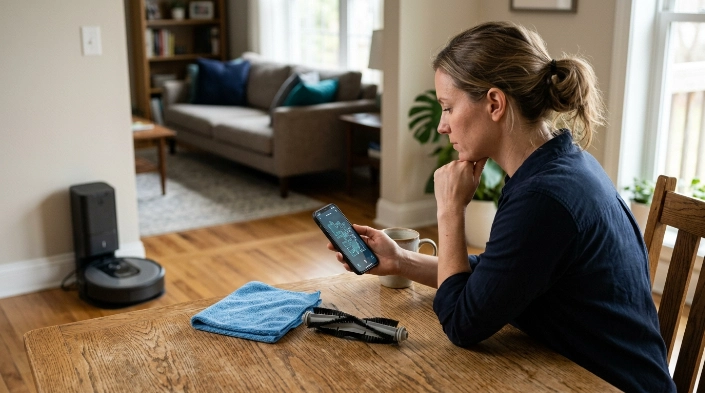
Remapping makes sense when the saved layout stays badly distorted after simpler troubleshooting. A factory reset should usually come later.
Delete and remap when:
- The map remains severely distorted after a clean mapping run.
- The robot repeatedly places rooms in impossible locations.
- A major home rearrangement makes the old layout inaccurate.
- Map recovery isn’t available or repeatedly fails.
- The manufacturer specifically recommends creating a new map.
Roborock provides a map-reset option for compatible models through its app. Its official map reset instructions show the general approach for supported products.
Reboot before factory resetting
A normal restart can clear temporary software problems without deleting your setup. Try that before wiping saved settings.
A factory reset may remove Wi-Fi information, schedules, cleaning history, saved maps, or other settings depending on the model. Check your manufacturer’s instructions first.
Contact support when hardware seems involved
Repeated mapping failures can sometimes accompany a jammed LiDAR assembly, damaged camera, wheel encoder problem, or another hardware fault. Error codes that return after cleaning and restarting deserve model-specific support.
Expert Alert: Don’t open electrical or navigation assemblies unless the manufacturer specifically provides a user-service procedure. Contact the manufacturer or a qualified appliance technician when internal repair appears necessary.
If maps disappear only when the app loses connectivity, troubleshoot the network before replacing parts. iRobot notes that cloud-dependent map and remote features may become unavailable when the robot cannot maintain its remote connection.
Its cloud connection troubleshooting guidance is useful for separating a connectivity failure from a physical navigation problem.
Robot Vacuum Mapping FAQ
Why did my robot vacuum suddenly lose its map?
The robot may have failed to recognize its location, the dock may have moved, or the app may not have loaded the saved map correctly. Return the vacuum to its normal dock, check connectivity, reboot it, and look for a map-recovery option before deleting anything.
Should I move my robot vacuum while it is mapping?
It’s better not to move it during a mapping run. Carrying the robot to another location can make localization harder, and some manufacturers specifically warn that moving the robot during initial mapping can prevent the map from being saved correctly.
Why does my robot vacuum keep creating a new map?
A new temporary map may appear when the robot cannot match its current surroundings to its saved position. Check the dock location, navigation sensors, software, blocked routes, and whether someone moved the robot between cleaning areas.
Can I move my robot vacuum dock after mapping?
You may be able to, but it can disrupt localization on some models. If you must relocate the dock, follow your manufacturer’s instructions and be prepared to run a new mapping cycle if the robot cannot adapt.
Why does my robot vacuum miss one room?
The doorway may have been closed or blocked during mapping. Rugs, high thresholds, reflective or dark surfaces, clutter, and restricted entry paths can also stop some robots from reaching the room.
Does a robot vacuum need Wi-Fi to remember its map?
That depends on the model and feature. Many smart vacuums use an app or cloud connection for map viewing, editing, synchronization, and remote controls, even though some navigation functions continue locally.
Will a factory reset fix robot vacuum mapping issues?
It can fix some software or configuration problems, but it may also delete useful settings and maps. Try sensor cleaning, dock repositioning, a reboot, map recovery, and a fresh mapping run before using a factory reset.
The best troubleshooting order is simple: stabilize the dock, clean the sensors, clear the floor, check connectivity, reboot, and complete one uninterrupted mapping run. Only delete the saved map when those steps fail.
If the problem returns even with a fresh map, note the exact error message and when it occurs. That information can make manufacturer support much more useful and may reveal a sensor, wheel, software, or docking problem.
