
Why Won’t My Robot Vacuum Dock? Causes and Fixes

Quick Answer
If your robot vacuum won’t dock, first check the dock’s power, clear the approach area, wipe the charging contacts, and clean the robot’s navigation sensors. If it reaches the dock but keeps backing away, poor contact, uneven flooring, blocked sensors, or dock alignment is more likely than a dead battery. Manufacturer troubleshooting guidance also recommends checking dock power and charging contacts before assuming the robot needs repair.
Check these first
- Dock power: Confirm the adapter is firmly connected and the outlet works.
- Clear approach: Remove furniture, cords, pet bowls, and other obstacles around the dock.
- Charging contacts: Wipe the metal pads on both the robot and dock.
- Navigation sensors: Remove dust from accessible sensors and the dock’s locator area.
- Saved map: Check whether the dock was moved after the robot mapped your home.
- Wheel movement: Remove hair or debris that stops the robot from lining up precisely.
Fastest test
- Place the robot a short distance in front of the powered dock and command it to return home. Its behavior usually reveals whether the problem is navigation, alignment, or charging.
Few robot vacuum problems are more frustrating than watching the machine wander around while its charging dock sits nearby. I troubleshoot this by separating two problems that often look identical: finding the dock and charging after docking.
That distinction saves a lot of guesswork. This guide walks through the causes in the order I would check them, from simple dock placement issues to battery or hardware faults.
In This Guide
- Why won’t my robot vacuum dock?
- How can I diagnose a docking problem quickly?
- How do I fix dock placement, power, and charging contacts?
- Why does my robot reach the dock and back away?
- Can mapping or software problems stop a robot vacuum from docking?
- When does a docking failure need repair?
- Frequently asked questions
Why Won’t My Robot Vacuum Dock?
A robot vacuum usually fails to dock because it cannot locate the base, cannot approach it correctly, or cannot make a reliable electrical connection after arriving. Start with those three categories before resetting anything.
Robot vacuum docking is the process where the vacuum locates its home base, lines up with it, makes physical contact, and begins charging or another dock function.
The most common causes
- The dock has no power: A loose adapter, switched outlet, damaged cable, or unpowered dock can prevent successful homing.
- The dock is poorly positioned: Tight corners, furniture, uneven flooring, or clutter can make alignment difficult.
- The charging contacts are dirty: Dust and residue can stop the robot from detecting a proper connection.
- The sensors are dirty: Navigation or dock-locating sensors can struggle when covered with dust.
- The dock was moved: Map-based robots may still expect the base at its previous location.
- The wheels are obstructed: Hair around a caster or drive wheel can affect precise positioning.
- The map is inaccurate: A corrupted or outdated map may send the robot to the wrong location.
- The battery is too weak: An aging battery may run flat before the robot gets home.
Official Xiaomi guidance, for example, tells owners to check dock placement, obstacles, map problems, dock operation, and charging-contact cleanliness when a robot struggles to recharge.
The key is to watch what the vacuum does. A robot that never approaches the dock has a different problem from one that touches the dock five times and keeps reversing.
Section Takeaway: Watch the failure pattern before changing settings. Where the robot stops in the docking process usually points toward the cause.
How Can I Diagnose a Docking Problem Quickly?
The fastest diagnosis is a controlled return-to-dock test. Start with a charged robot several feet from the base on an uncluttered floor.
- Confirm that the dock is connected to a working outlet.
- Place the vacuum directly in front of the dock.
- Remove temporary objects from the approach path.
- Use the app or vacuum button to send it home.
- Watch exactly where the process fails.
- Place the robot on the dock manually and see whether charging begins.
| What You See | Likely Area to Check | Quick Test |
|---|---|---|
| Robot wanders and never reaches dock | Navigation, map, dock signal, obstacles | Start it close to the dock and send it home |
| Robot reaches dock but approaches at an angle | Dock placement, wheels, sensors | Clear the floor and inspect wheels |
| Robot touches dock and repeatedly reverses | Contacts, alignment, uneven floor | Clean contacts and dock manually |
| Robot docks normally but does not charge | Power, charging contacts, battery, dock hardware | Test the outlet and reseat the robot |
I find the manual-docking test especially useful. If the vacuum charges when you place it correctly yourself, the battery and charging system may be working while the automatic approach is failing.
If manual placement still produces no charging indicator, move your attention toward the outlet, adapter, contacts, battery, or internal charging hardware.
How Do I Fix Dock Placement, Power, and Charging Contacts?
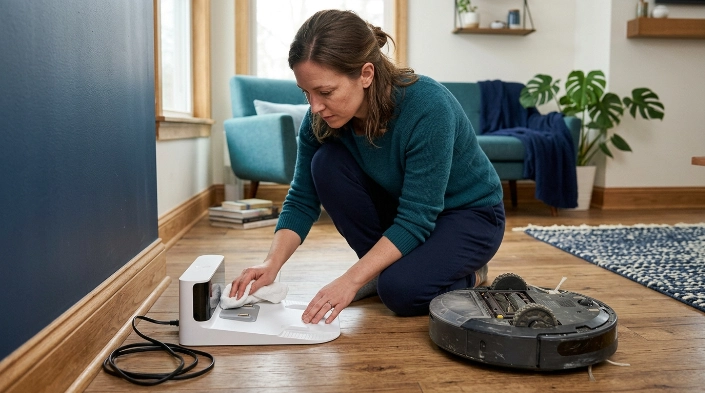
Start with the physical setup because it takes only a few minutes. These fixes also avoid unnecessary factory resets.
Check whether the charging dock has power
Push the dock’s power connector firmly into place and test the wall outlet with another small appliance. Check your model’s dock indicator light if it has one.
TP-Link’s robot-vacuum troubleshooting guidance similarly recommends confirming the dock indicator and power connections before moving to other causes.
Give the robot a clear path
Move the dock onto a flat, firm surface against a stable wall. Avoid wedging it behind furniture or placing it where rugs create an uneven approach.
Clearance requirements vary by manufacturer. Xiaomi documentation for one model recommends about 0.5 meter on each side and 1.5 meters in front, so your own manual should take priority.
- Move shoes, pet bowls, and baskets away from the approach area.
- Keep loose charging cables away from the dock.
- Avoid placing the dock beside stairs or sudden drop-offs.
- Keep the dock in one permanent location after mapping.
Clean the metal contacts
Unplug the dock before cleaning it. Wipe the charging pads on the robot and dock with a clean, dry, lint-free cloth unless your manufacturer specifies another method.
Roborock’s support guidance also identifies stained or dirty charging contacts as a possible docking problem. Consumer Reports recommends regular robot-vacuum cleaning because dust and debris collect on components over time.
You can review its broader robot vacuum cleaning guidance when building a maintenance routine.
Clean the sensors and wheels
Use a dry microfiber cloth on accessible navigation and docking sensors. Don’t spray cleaner directly onto sensor windows or electronic openings.
- Check the front caster for wrapped hair.
- Inspect both drive wheels for thread or debris.
- Make sure bumper movement isn’t restricted.
- Remove dust covering visible sensor windows.
Section Takeaway: Power, open space, clean contacts, clean sensors, and freely moving wheels solve many docking failures without changing software settings.
Why Does My Robot Reach the Dock and Back Away?
If the robot reaches its dock but repeatedly moves forward and backward, it usually knows where home is. The failure is happening during final alignment or charging-contact detection.
The charging pads are not connecting
A thin film of dust can prevent consistent electrical contact. Clean both surfaces, then check whether spring-loaded dock pins move freely if your dock uses them.
Xiaomi specifically lists dirty charging contacts as a reason a robot may repeatedly attempt to dock. Its official docking guidance also recommends checking the floor and surrounding obstacles.
The floor is making the dock move
A lightweight dock can slide when the vacuum pushes against it. A thick rug edge can also change the robot’s angle during the final approach.
Place the station on a stable surface and keep its base completely flat. Don’t use adhesives or modifications that block vents or service access.
The robot docks but still won’t charge
Docking and charging aren’t the same thing. A robot can park correctly while receiving no usable charging connection.
- No dock light: Check power first.
- Dock has power: Clean and inspect both charging contacts.
- Charging starts intermittently: Check alignment and contact pressure.
- Charging never starts: Consult model-specific support before replacing the battery.
A weak battery becomes more plausible when runtime has also dropped sharply. Consumer Reports’ 2026 reliability reporting notes that battery-related problems remain one of the issues robot-vacuum owners report.
Expert Alert: Stop using the dock if you see damaged wiring, melted plastic, scorch marks, exposed electrical parts, or unusual overheating. Have the unit inspected by a qualified repair professional or the manufacturer.
Can Mapping or Software Problems Stop a Robot Vacuum From Docking?
Yes. Mapping robots can have trouble returning home when the saved map no longer matches the dock location or room layout.
This is especially worth checking if the robot worked normally before you moved its base, rearranged a room, or restored app settings.
Return the dock to its mapped position
If you recently moved the dock, put it back in its previous location and test again. Many mapping systems use the base as a fixed reference point.
Don’t move the vacuum by hand halfway through a mapping run unless your manual allows it. Carrying it between rooms can also confuse some navigation systems.
Check virtual boundaries
Open the robot’s app and inspect no-go zones, invisible walls, room divisions, and restricted areas. Make sure a virtual barrier isn’t blocking the path home.
- Remove accidental no-go zones near the dock.
- Check whether room boundaries still match your floor plan.
- Confirm the dock appears in the correct map location.
- Restart the robot and app before deleting a good map.
Remap only after simpler fixes fail
A complete remap can solve a badly corrupted layout, but it should not be your first step. You may lose room names, schedules, zones, and other saved settings.
Likewise, don’t jump straight to a factory reset. Some manufacturers warn that resets erase saved maps and configuration data.
If an ordinary restart doesn’t help, check the support page for your exact model and firmware version before taking stronger action.
When Does a Docking Failure Need Repair?
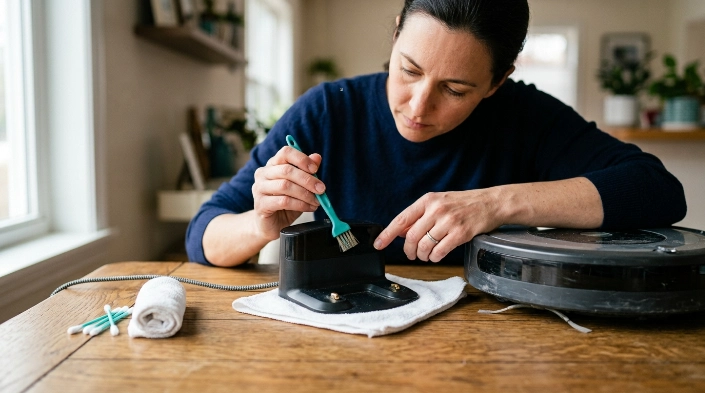
Consider professional service when basic cleaning, correct dock placement, a working outlet, and a restart do not change the behavior. Repeated mechanical or electrical symptoms deserve closer inspection.
Signs the dock itself may be faulty
- The dock has no indicator despite a confirmed working outlet.
- The power adapter or connector works only when held at an angle.
- Charging pins are stuck, broken, or badly corroded.
- The dock moves or behaves abnormally even when correctly assembled.
- The robot charges on another compatible dock but not yours.
Roborock recommends checking whether the auto-empty dock is operating and inspecting its beacon and charging contacts when docking fails. Its official support instructions are a good example of why model-specific checks matter.
When the battery may be responsible
A battery problem is more likely when the robot cannot stay powered long enough to reach its dock or its useful runtime has fallen noticeably. Battery age alone doesn’t prove failure.
Before buying a replacement, confirm that the dock and charging contacts work correctly. A new battery won’t solve a powerless charging station.
Use the manufacturer’s diagnostic path
As of 2026, robot vacuums range from simple infrared-guided machines to camera- or lidar-based models with multifunction docks. Their reset procedures and error codes can differ widely.
Record the error message, app warning, or docking behavior before contacting support. A short video can also make an intermittent alignment problem easier to explain.
Section Takeaway: Replace parts only after identifying whether the failure belongs to navigation, the dock, charging contacts, or the battery. Guessing can turn a simple cleaning problem into an unnecessary repair bill.
Frequently Asked Questions
Why can’t my robot vacuum find its charging station?
The dock may be hidden by furniture, unpowered, surrounded by obstacles, or located differently from the saved map. Clear the area, confirm power, clean the navigation sensors, and test the return-home command from a short distance.
Why does my robot vacuum go near the dock but not connect?
This usually points to final alignment rather than navigation. Clean the charging contacts, inspect the wheels, make sure the dock sits flat, and remove anything that can make the robot approach at an angle.
Why does my robot vacuum keep going on and off the charger?
Repeated docking can happen when the contacts connect inconsistently or the robot cannot settle into the correct position. Clean the pads, check the dock surface, and make sure spring-loaded contacts move normally.
Can I move my robot vacuum dock to another room?
Usually, but mapped robots may need time to recognize the new location or may require remapping. Check the manufacturer’s instructions, and avoid moving the dock repeatedly once the robot has learned your floor plan.
Should I reset my robot vacuum if it won’t dock?
Not immediately. Check power, dock placement, contacts, sensors, wheels, obstacles, and the map first. Try a normal restart before a factory reset because a full reset may erase saved maps and settings.
Can a bad battery stop a robot vacuum from docking?
Yes, especially if the battery runs out before the robot reaches home. However, a robot that reaches the dock and simply fails to charge may have a dock, alignment, or contact problem instead.
How often should I clean robot vacuum charging contacts?
There is no single schedule for every model. Inspect them during regular robot maintenance and clean them when you see dust or residue, following the manufacturer’s instructions for your specific vacuum.
Final Takeaway
If your robot vacuum won’t dock, don’t start by replacing parts. First determine whether it cannot find the dock, align with the dock, or charge after docking.
Check power, give the base a clear approach, clean the contacts and sensors, inspect the wheels, and verify the saved map. If those steps fail, use your model’s support diagnostics before resetting the robot or replacing its battery.
