
Why Won’t My Robot Vacuum Connect to Wi-Fi?

Quick Answer
Your robot vacuum usually won’t connect to Wi-Fi because it is using an unsupported Wi-Fi band, isn’t in pairing mode, has the wrong network password, lacks app permissions, or has a weak signal. Start by checking your exact model’s Wi-Fi requirements, because Wi-Fi band support varies between robot vacuum models.
Check these first
- Check the band: Try a 2.4 GHz network first unless your exact model confirms 5 GHz support.
- Reset Wi-Fi mode: Put the vacuum back into network setup or pairing mode.
- Retype the password: Enter your Wi-Fi password manually and check capitalization.
- Enable permissions: Allow Bluetooth, local-network, and other permissions requested by the official app.
- Move closer: Pair the robot near the router before returning it to its normal dock location.
Before doing a factory reset
- Try a Wi-Fi reset first. A full factory reset may erase maps, schedules, room names, and other saved settings.
Robot vacuum Wi-Fi problems are frustrating because the cleaner itself may work perfectly while the app refuses to finish setup. For everyday home hygiene, that can mean losing schedules, maps, no-go zones, remote controls, and other useful features.
My approach is to troubleshoot the connection in a fixed order instead of repeatedly reinstalling the app. The steps below cover the most common causes without assuming every robot or router works the same way.
In This Guide
Why Won’t My Robot Vacuum Connect to Wi-Fi?
A failed Wi-Fi connection normally comes from a mismatch between the robot, your router, and the phone running its companion app. The vacuum itself does not necessarily have a hardware fault.
A robot vacuum Wi-Fi connection is the wireless link that lets the cleaner communicate with its app and online services. That connection is separate from the robot’s motors, brushes, sensors, and basic cleaning controls.
Most common connection problems
- Unsupported Wi-Fi band: The robot needs 2.4 GHz, but setup is being attempted through an incompatible 5 GHz network.
- Pairing mode expired: The robot is powered on but is no longer broadcasting the temporary connection needed during setup.
- Incorrect password: A wrong character, capitalization error, or accidental space prevents authentication.
- Weak Wi-Fi signal: The robot or dock is too far from the router or behind several dense walls.
- Missing app permission: Bluetooth or local-network access is blocked on the phone.
- Router restrictions: Guest isolation, hidden networks, enterprise authentication, VPNs, or unusual security settings can interfere with some models.
- Old network information: The robot still remembers credentials from a previous router or password.
One useful clue is where setup fails. If the app cannot find the robot at all, pairing mode or phone permissions deserve attention first.
If the app finds the robot but fails after you enter your Wi-Fi password, look at the network band, password, and router settings.
How Do I Reconnect My Robot Vacuum to Wi-Fi?
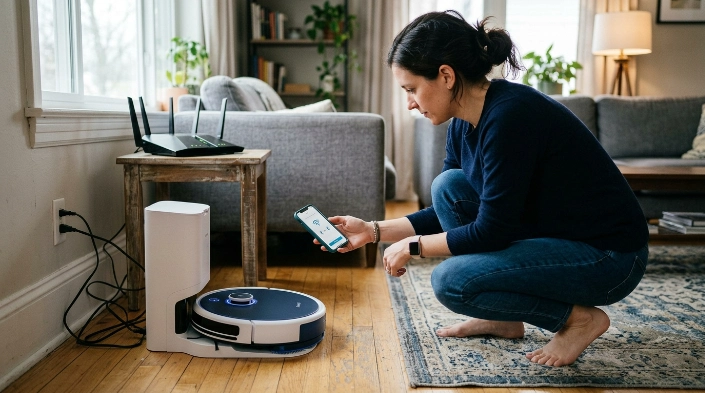
The safest fix is to start with reversible steps and leave a factory reset until last. This helps preserve maps and schedules whenever your model allows it.
- Charge and power on the robot. Put it on its powered dock or make sure it has enough battery to complete setup.
- Check your internet connection. Confirm your phone can access the internet through the home Wi-Fi network.
- Check your model’s Wi-Fi requirements. Do not assume 5 GHz support just because your router provides it.
- Move the robot closer to the router. A short distance removes weak signal as a variable during setup.
- Open the official app. Sign into the correct account and choose the exact robot model when required.
- Enable requested permissions. Bluetooth, local-network access, and related permissions may be needed during discovery.
- Put the robot into Wi-Fi pairing mode. Follow your model’s button sequence rather than guessing it.
- Select the correct network. Use 2.4 GHz when your model requires it.
- Type the password manually. Double-check capital letters, numbers, spaces, and symbols.
- Wait for setup to finish. Keep the app open and the phone near the robot until confirmation appears.
Restart before resetting everything
If setup still fails, restart the robot, phone, and router. Let the router finish booting before trying the pairing process again.
Next, use your manufacturer’s Wi-Fi reset procedure. For example, Roborock documents a separate Wi-Fi reset process for compatible models rather than requiring an immediate complete factory reset.
- Remove the robot from the app if the manufacturer specifically instructs you to do so.
- Reset only the robot’s network connection first.
- Run the normal add-device process again.
- Use a factory reset only when the support instructions call for it.
Section Takeaway: Troubleshoot from least destructive to most destructive. Confirm the network, permissions, and pairing mode before erasing the robot’s saved settings.
Does a Robot Vacuum Need 2.4 GHz or 5 GHz Wi-Fi?
There is no single answer for every robot vacuum in 2026. Many models still require 2.4 GHz, while some newer models support both 2.4 GHz and 5 GHz.
For example, Roborock’s current support guidance says its robots use 2.4 GHz rather than 5 GHz. Other brands and models may differ.
| Network type | What it means | Robot vacuum setup advice |
|---|---|---|
| 2.4 GHz | Longer practical range than 5 GHz and widely supported by smart-home devices. | Best first choice when your model’s documentation is unclear. |
| 5 GHz | Usually offers higher data capacity but has shorter practical range. | Use only when your exact robot confirms 5 GHz compatibility. |
| Combined 2.4/5 GHz SSID | Both bands share one network name and the router manages band selection. | Often works, but separating the bands temporarily can help diagnose setup failures. |
| Guest or enterprise network | May isolate devices or require extra authentication. | Use a normal supported home network unless the manufacturer confirms compatibility. |
The Federal Communications Commission’s Wi-Fi guidance also notes that 5 GHz generally has shorter coverage than 2.4 GHz. That difference can matter when a robot’s dock sits far from your router.
What if my router uses one name for both bands?
Try the combined network normally first. Modern routers often use one SSID, or network name, for both frequencies.
If pairing repeatedly fails and your robot requires 2.4 GHz, check whether the router app allows a temporary 2.4 GHz-only setup network. Another option is temporarily separating the 2.4 GHz and 5 GHz network names.
Do not weaken or disable Wi-Fi security just to connect a vacuum. Your robot manufacturer or router provider can tell you which secure modes are supported.
Section Takeaway: 2.4 GHz remains the safest troubleshooting choice, but model-specific documentation wins. Do not assume every robot has the same Wi-Fi hardware.
Can My Phone or App Stop the Robot From Connecting?
Yes. A robot vacuum can have a perfectly usable Wi-Fi signal while phone permissions prevent the app from discovering or configuring it.
Start by checking whether the official app has the permissions requested during setup.
- Bluetooth: Some robots use Bluetooth to discover the vacuum before transferring Wi-Fi information.
- Local network: The app may need permission to communicate with devices on your home network.
- Nearby devices: Android versions may use this permission during device discovery.
- Location-related access: Some apps request it as part of Bluetooth or Wi-Fi device discovery.
On iPhone and iPad, Apple explains that apps must request permission before browsing devices on your local network. You can review this under Privacy & Security settings using Apple’s local-network permission guidance.
Check the simple phone problems too
- Turn Bluetooth on when the setup instructions require it.
- Disable a VPN temporarily if the robot manufacturer says VPN connections are unsupported during setup.
- Update the official robot vacuum app.
- Restart the phone after changing permissions.
- Make sure you selected the correct vacuum model in the app.
If the app reports an incorrect password, enter it manually instead of pasting it. This can eliminate hidden spaces or copied characters.
Why Does My Robot Vacuum Keep Going Offline?

A robot that connects successfully and later goes offline usually has a different problem from one that never pairs. Signal coverage, router changes, or saved network credentials become more likely causes.
Check what changed
- Wi-Fi password changed: The robot still has the old credentials.
- Router was replaced: The new network may have a different name, security mode, or band configuration.
- Dock was moved: The new location may have weaker Wi-Fi coverage.
- Mesh network changed: A node was moved, removed, or reconfigured.
- Firmware or app changed: Rebooting and checking the manufacturer’s support page can help after an update.
If the dock sits in a weak-signal area, test the robot closer to the router. Do not permanently relocate a mapping robot’s dock without checking how your model handles dock movement.
ECOVACS also documents network requirements and setup conditions for its robots in its official initial connection guidance. The exact requirements vary by model, which is why brand-specific instructions matter.
If the vacuum works from its physical buttons but appears offline only in the app, that points more strongly toward networking or cloud connectivity than a cleaning-system failure.
Frequently Asked Questions
Why won’t my robot vacuum find my Wi-Fi network?
Your network may be using a band the robot does not support, the SSID may be hidden, or the signal may be weak. Confirm your model’s requirements and try setup near the router using a visible 2.4 GHz network when supported.
Can I connect my robot vacuum to 5 GHz Wi-Fi?
Only if your exact model supports it. Some newer robot vacuums accept both 2.4 GHz and 5 GHz, while many others remain 2.4 GHz-only.
Why does my robot vacuum say my Wi-Fi password is wrong?
Retype the password manually and check capitalization, symbols, and spaces. If the password is definitely correct, verify that you selected the correct network and that its security settings are compatible with your robot.
Can I use a phone hotspot for my robot vacuum?
It may work with some models, but it is not a reliable universal troubleshooting method. The hotspot must meet the robot’s Wi-Fi requirements, and using the same phone for both the hotspot and setup app can complicate pairing.
Do I need Wi-Fi for a robot vacuum to clean?
Not always. Many robot vacuums can start basic cleaning from onboard buttons, but Wi-Fi is commonly required for mapping controls, schedules, remote operation, firmware updates, and other app-based functions.
Should I factory-reset my robot vacuum if Wi-Fi won’t connect?
Not as the first step. Try restarting your equipment and resetting only the robot’s Wi-Fi connection first, because a factory reset may remove saved maps, schedules, rooms, and preferences.
Could my router be the problem?
Yes. Band steering, weak coverage, hidden SSIDs, device isolation, unsupported authentication, or other router settings can block setup. Check both your router documentation and the robot manufacturer’s network requirements before changing security settings.
What Should I Do If Nothing Works?
If your robot vacuum still will not connect, write down exactly where setup fails. Knowing whether the app cannot find the robot, rejects the password, or fails after joining Wi-Fi makes support much faster.
Check the manufacturer’s current support page for your exact model before performing a factory reset. Wi-Fi hardware and setup procedures can differ even between robots from the same brand.
For an independent overview of robot vacuum setup, Consumer Reports’ robot vacuum setup guidance is also a useful reference.
- Confirm the supported Wi-Fi band.
- Move the robot near the router.
- Enable required phone permissions.
- Put the robot into pairing mode again.
- Retype the Wi-Fi password.
- Restart the robot, phone, and router.
- Reset Wi-Fi before considering a full factory reset.
If the robot cannot enter pairing mode, repeatedly loses power, or shows a hardware error even after a documented reset, contact the manufacturer’s support team. At that point, the problem may no longer be your home Wi-Fi network.
