How Do I Reset My Robot Vacuum? A Safe Step-by-Step Guide

Quick Answer
To reset a robot vacuum safely, start with a simple reboot instead of a factory reset. Turn the robot off and back on, or use its app’s restart option if available. Reset Wi-Fi separately when connectivity is the only problem, and use a factory reset only when simpler fixes fail. For broader robot-vacuum information, see Consumer Reports’ vacuum guidance.
Reset safely in this order
- Check power first: Make sure the battery has charge and the dock is receiving power.
- Try a reboot: Restart the robot without deleting maps, schedules, or account settings.
- Reset Wi-Fi only: Use this when the robot works normally but cannot connect to your network or app.
- Use factory reset last: This may erase maps, cleaning schedules, Wi-Fi details, preferences, and other saved data.
- Follow your model manual: Button combinations vary between brands and even between models from the same manufacturer.
One important precaution
- Don’t guess button combinations: Confirm the procedure for your exact model before performing a factory reset.
When a robot vacuum freezes, goes offline, stops mapping correctly, or refuses to start a cleaning cycle, resetting it can help. The confusing part is that “reset” can mean several different things.
My troubleshooting rule is simple: start with the least destructive option. This guide explains rebooting, Wi-Fi resets, factory resets, and what to do when none of them solve the problem.
In This Guide
What Does Resetting a Robot Vacuum Actually Mean?
A robot vacuum reset can mean restarting its software, clearing its network connection, or restoring the entire machine to factory settings. These actions are not interchangeable.
Definition: A robot vacuum reset is a troubleshooting action that restarts or clears part of the vacuum’s stored software configuration. How much information disappears depends on the type of reset.
Reboot or restart
A reboot is the mildest option. It restarts the robot’s operating system much like restarting a phone.
A reboot is the first thing I’d try when buttons stop responding, an app command hangs, or the robot behaves strangely after otherwise normal operation.
- Usually keeps: Maps, schedules, Wi-Fi credentials, room names, and preferences.
- Best for: Temporary software glitches, frozen controls, or an unexplained error.
- Risk: Low, provided you follow the manufacturer’s restart procedure.
Wi-Fi reset
A Wi-Fi reset deals with the robot’s network configuration. It is useful when you changed your router, network name, password, or other Wi-Fi settings.
The vacuum itself may still clean normally after losing Wi-Fi. App control, remote scheduling, map syncing, and voice-assistant features may stop working until you reconnect it.
Factory reset
A factory reset is much more significant. It attempts to return the robot’s settings to their original state.
Depending on the model, it can remove Wi-Fi information, schedules, maps, room labels, cleaning preferences, account associations, or cleaning history. Some brands preserve certain cloud-based information, so always check the exact manual.
How Do I Reset My Robot Vacuum Without Losing Everything?
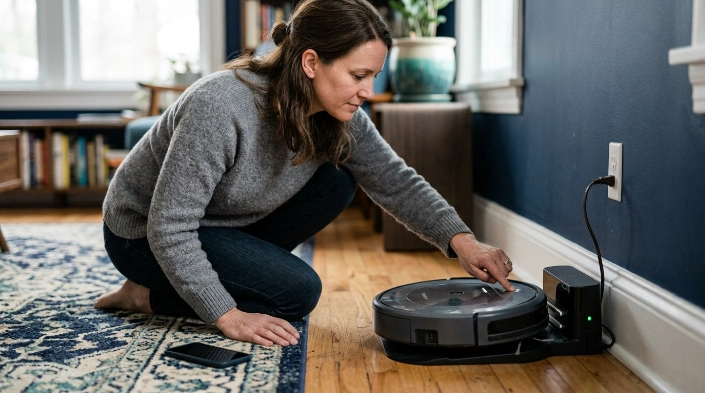
Start with a normal reboot. If the robot still has power and responds to its controls, there is rarely a good reason to jump directly to a factory reset.
Step 1: Return the robot to a stable power state
Place the vacuum on its powered charging dock if possible. Give a low battery time to charge before troubleshooting.
If the charging contacts look dusty, wipe them using the cleaning method approved in your manual. Don’t pour cleaner or water directly onto electrical contacts.
Step 2: Restart the robot
Use the power button, app restart command, or documented reboot procedure for your model. Wait until the robot completes its startup sequence before pressing more buttons.
- Pause any active cleaning cycle.
- Return the robot to its dock or another safe, level surface.
- Use the manufacturer’s normal shutdown or reboot method.
- Wait for the robot to shut down completely.
- Restart it and test a short cleaning cycle.
As of 2026, there is still no universal robot-vacuum reset button combination. Two models from the same brand can use completely different controls.
Step 3: Reset only the feature causing trouble
If cleaning works but app connectivity does not, reset the network connection rather than the entire vacuum. You may then need to add the robot to its official app again.
If your problem involves dirt pickup rather than software, a reset may accomplish nothing. Check the bin, filter, brushes, wheels, sensors, and airflow before erasing settings.
The EPA’s indoor air quality resources also emphasize household cleaning as part of reducing indoor contaminants. Software troubleshooting should never replace ordinary vacuum maintenance.
Which Reset Should I Use: Reboot, Wi-Fi Reset, or Factory Reset?
Choose the reset that matches the symptom. Using the smallest necessary reset saves time and reduces the chance of losing maps or schedules.
| Reset type | Best used for | Wi-Fi affected? | Maps and schedules | Data-loss risk |
|---|---|---|---|---|
| Reboot | Frozen controls, temporary errors, strange software behavior | Usually no | Usually retained | Low |
| Wi-Fi reset | New router, changed password, app cannot reconnect | Yes | Often retained, but model-dependent | Low to moderate |
| Factory reset | Persistent software problems or manufacturer-directed troubleshooting | Commonly cleared | May be erased | Highest |
A mapping problem also does not automatically require a factory reset. Cleaning navigation sensors, checking dock placement, or rebuilding only the saved map may be enough.
Likewise, a robot that cannot find its dock may have a dirty sensor or blocked route. Resetting software will not remove a physical obstruction.
What Should I Do Before a Factory Reset?
Check what your model will erase before you continue. Factory-reset behavior varies enough that I would never rely on instructions written for a different robot.
- Identify the exact model: Check the label on the robot, app, packaging, or manual.
- Read the official reset instructions: Confirm the correct buttons, timing, and confirmation sequence.
- Check map options: Some ecosystems may let you retain or restore certain map information.
- Record important settings: Note room names, no-go zones, cleaning schedules, suction preferences, and mop settings.
- Confirm your Wi-Fi password: You’ll probably need it when reconnecting the robot.
- Charge the battery: Avoid beginning a major software reset with an almost-empty battery.
- Keep the dock powered: Don’t unplug equipment during a documented reset unless the manufacturer specifically says to do so.
Think about why you’re resetting it. A clogged brush, dirty filter, jammed wheel, blocked suction path, or dirty sensor is a mechanical or maintenance problem.
If dust or allergens are the reason you’re relying heavily on a robot vacuum, the Asthma and Allergy Foundation of America provides broader information about allergens and household triggers. A factory reset cannot compensate for neglected filters, brushes, or cleaning surfaces.
What If My Robot Vacuum Still Doesn’t Work After Resetting?
If a correct reboot or reset changes nothing, stop repeating it. Repeated factory resets rarely solve a problem caused by power, charging hardware, blocked moving parts, damaged sensors, or an incompatible network.
The robot will not turn on
Check the dock’s power connection and confirm the robot is sitting correctly on its charging contacts. A deeply discharged battery may need time on the dock before the robot responds.
- Check the wall outlet with another suitable device.
- Inspect the dock cable for visible damage.
- Make sure charging contacts are clean and dry.
- Allow the robot time to charge before attempting another restart.
The robot turns on but will not clean
Look for a blocked main brush, tangled side brush, jammed wheel, full dustbin, incorrectly installed filter, or obstruction near a sensor. These faults cannot normally be corrected by resetting software.
Remove hair and debris only according to your manual. Turn the robot off before handling accessible moving components.
The robot works but stays offline
Focus on Wi-Fi rather than factory settings. Confirm that the router has internet access, recheck the password, and put the vacuum into its documented network-pairing mode.
Some robot vacuums support only certain Wi-Fi configurations. Check your exact model’s specifications instead of assuming every robot supports the same network bands.
The same error immediately returns
A recurring error can indicate that the underlying cause was never removed. Write down the exact error code or message and check the manufacturer’s support documentation.
Expert Alert: Stop using the vacuum and contact the manufacturer or a qualified technician if you notice a damaged power cord, overheating, a burning smell, battery swelling, liquid intrusion, exposed wiring, or another electrical fault. Don’t open or repair electrical or battery components unless the manufacturer specifically authorizes that work.
What Happens After a Factory Reset?

Expect to perform at least part of the original setup again. Exactly what disappears depends on the robot, app, cloud account, and reset method.
- Wi-Fi: You may need to reconnect the robot to your home network.
- App setup: The vacuum may need to be added to its official app again.
- Maps: Saved floor plans or room divisions may disappear on some models.
- Schedules: Automatic cleaning times may need to be recreated.
- Zones: No-go areas, no-mop zones, and room-specific settings may need rebuilding.
- Smart-home links: Voice assistants or other connected services may require reconnection.
After setup, run a short supervised cleaning cycle. Make sure the robot starts, navigates, returns to its dock, and responds correctly in the app.
If maps were erased, let the robot build a new map under normal conditions. Keep doors open to wanted rooms, remove temporary floor clutter, and avoid carrying the robot during its mapping run.
Frequently Asked Questions
Will resetting my robot vacuum delete the map?
A normal reboot usually should not erase a saved map, while a factory reset may. Map behavior varies by brand, model, app, and reset method, so check the manufacturer’s instructions before proceeding if your map contains important room divisions or no-go zones.
How do I reset a robot vacuum that won’t turn on?
First confirm that the dock has power and the charging contacts are clean and correctly aligned. Leave a low battery charging before retrying. If the vacuum remains completely unresponsive, use the manufacturer’s troubleshooting process rather than repeatedly pressing undocumented reset combinations.
Should I factory reset my robot vacuum if it won’t connect to Wi-Fi?
Usually not as your first step. Test your internet connection, restart the robot and router, verify the password, and use the robot’s dedicated Wi-Fi reset or pairing procedure. A factory reset is better reserved for persistent problems when simpler network troubleshooting fails.
Can I reset my robot vacuum without the app?
Many models provide physical-button restart or reset procedures, but the exact sequence varies. Some functions are easier through the manufacturer’s app, while certain factory resets can be performed directly on the robot. Always use instructions written for your exact model.
Why is my robot vacuum still acting strange after a reset?
The cause may not be software. Dirty sensors, tangled brushes, blocked wheels, poor charging contact, battery problems, dock placement, network issues, or damaged hardware can create symptoms that a reset cannot fix.
How often should I reset my robot vacuum?
There is no reason to factory reset a properly working robot vacuum on a schedule. Reboot only when troubleshooting calls for it, and reserve factory resets for persistent software problems, ownership changes, or situations where the manufacturer specifically recommends one.
The safest reset is the smallest reset that solves the problem. Start with power checks and a reboot, reset Wi-Fi when connectivity is the issue, and save a factory reset for last.
If a factory reset does not restore normal operation, use the exact error message and model number when contacting manufacturer support. That is usually more useful than wiping the robot repeatedly.